

It means the planner couldn’t draw a route between your last point and the new one, usually because, once both are snapped to a path, they end up less than about 5 metres apart. In the iPhone app you’ll see Segment too short: “We couldn’t update this route because the segment is too short. Move the markers farther apart and try again.” The planner then removes the point you just added.
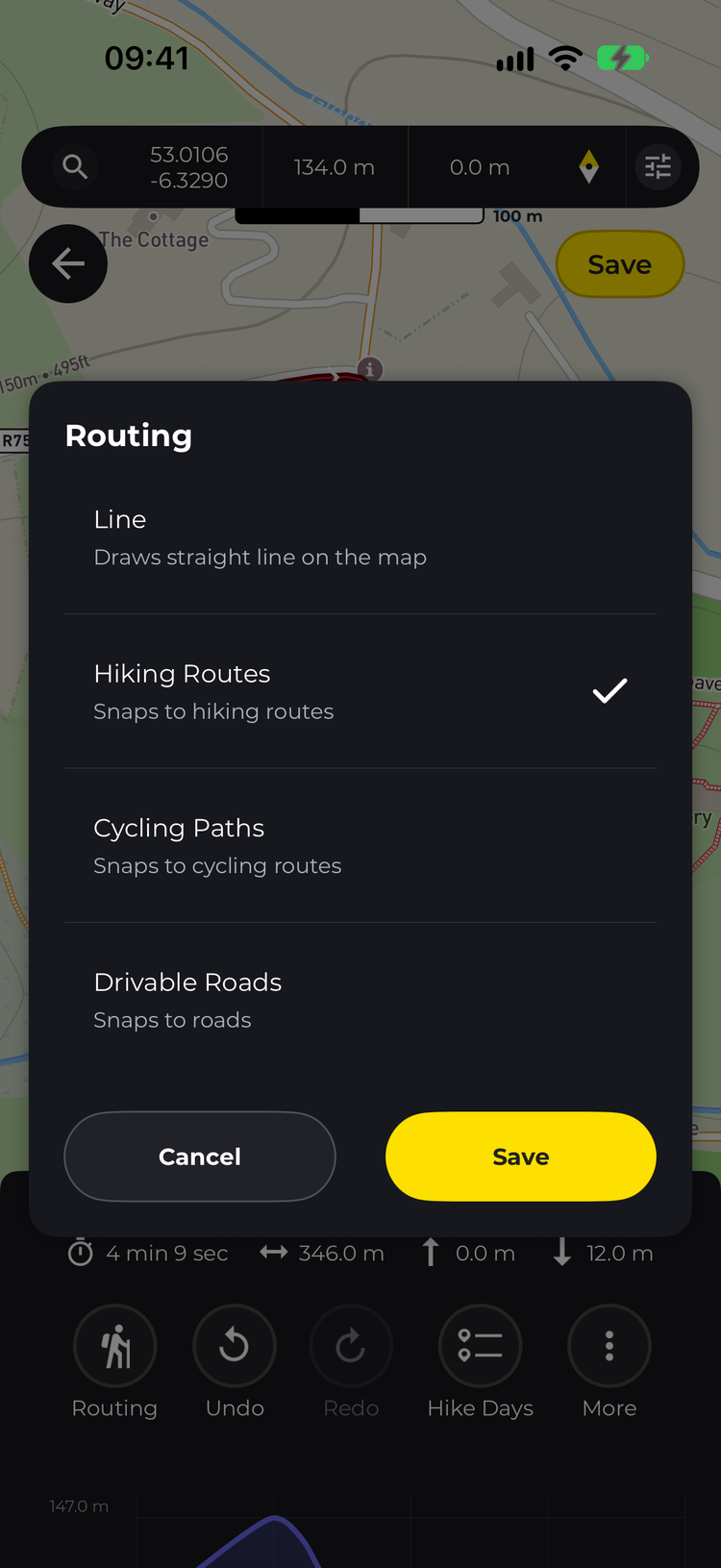
It mostly happens when you plan into an area with no mapped path. With Hiking Routes routing, the planner snaps each new point to the nearest known path, which can land it almost on top of your previous point. The fix is to draw that section with straight lines:
- Tap Routing at the bottom of the planner and choose Line.
- Long tap to add your points through the unmapped section. They’re joined with straight lines.
- Tap Routing again and choose Hiking Routes (on Android: Hiking routes) so the rest of your route follows paths again.
The Android app and the website don’t show this message, but the same fix works if a new point won’t join your route. On the website, the straight-line mode is the Draw straight lines button under Routing.
More planner tips: Plan a hike.