

How hard did that last climb really push you? Your recordings now tell you. Open a recording in the HiiKER app and swipe through its stats cards to see your heart rate, your pace and your steps, each drawn as a graph along the hike, plus how long you spent in each heart rate zone. The cards sit under the map, so the route stays in view while you swipe.
In this article: Find the cards · Where the data comes from · What each card shows · Heart rate zones · Graphs on the map · When a card doesn’t show · Good to know
Find the cards
In the app (iPhone and Android)
- Open a recording, for example from My Recordings on the Home tab.
- Under the map image you’ll see the Summary card. Swipe left to see Ascent, Heart Rate, Steps and Pace. The dots under the cards show how many there are and which one you’re on.
- Tap View on map on any card to open the recording’s map with that card’s graph.
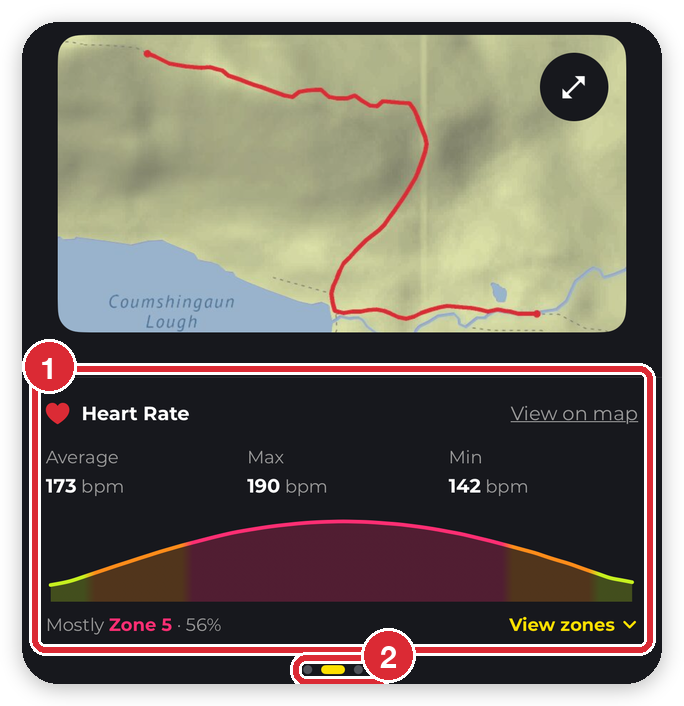

You only see the cards a recording has data for. A recording with no heart rate, for example, goes straight from Ascent to Steps.
Where the data comes from
All three are collected while you record a hike in the HiiKER app. Recordings you import from a file or sync from Garmin don’t include heart rate or steps.
- Heart rate comes from the HiiKER watch app on your Apple Watch or Wear OS watch. Your phone records the hike and your watch measures your heart rate alongside it.
- Steps are counted by your phone’s own step counter, so keep your phone on you while you walk. Steps taken while the recording is paused aren’t counted.
- Pace is worked out from your recorded route and its times, so you don’t need anything extra.
On iPhone with Apple Watch
- When you start a recording on your iPhone, HiiKER opens on your Apple Watch by itself (iOS 17 or later). If it doesn’t, open the HiiKER watch app and it picks up the recording.
- Allow Health access when HiiKER asks, on your iPhone and on your watch. Without it, your watch can’t measure your heart rate for the recording.
- For steps, allow Motion & Fitness when HiiKER asks. You can check it later in your iPhone’s Settings > HiiKER.
On Android with Wear OS
- Open HiiKER GO on your watch while the recording is running, or start the recording from your watch. Your watch starts measuring your heart rate when the app opens during a recording.
- Allow heart rate access (Body sensors on older watches) when HiiKER GO asks.
- For steps, allow Physical activity when the HiiKER app asks.
New to recording with a watch? See the HiiKER Watch App: Complete Guide.
What each card shows
Each card has a few headline numbers and a small graph of the hike from start to finish.
- Summary: Distance, Duration and Elevation gain, with your elevation along the hike.
- Ascent: your Ascent rate and Descent rate in metres (or feet) per hour, your Max gradient, and the stretch where you climbed fastest.
- Heart Rate: Average, Max and Min in bpm (beats per minute). On your own recordings, the graph is coloured by heart rate zone and a line underneath shows the zone you spent most time in, for example Mostly Zone 3 · 59%.
- Steps: Total steps, Average cadence in spm (steps per minute) and your average Stride length.
- Pace: your Average and Fastest pace, in minutes per kilometre (/km) or per mile (/mi), following your measurement units. Tap View splits to see your pace on every kilometre or mile.


Pace is your moving pace: time spent stopped (a lunch break, a pause) is left out, and anything slower than an hour per kilometre counts as standing still. Pace is measured over stretches of the route, so Fastest is your quickest stretch, not a single burst.
To switch between kilometres and miles, go to Home > Settings > App Settings > Customize > Measurement Units.
Heart rate zones
Zones split your heart rate into five bands, from an easy stroll (Zone 1) to flat out (Zone 5). They’re personal, so you only see them on your own recordings.
Set up your zones
Your zones are worked out from your age. If HiiKER already knows your date of birth, they appear straight away. If not, the Heart Rate card says Zones need your max heart rate.
- On the Heart Rate card, tap Set up zones.
- On iPhone, allow HiiKER to read your date of birth and resting heart rate from Apple Health. If Health has your date of birth, your zones appear. If it doesn’t, HiiKER asks for it.
- On Android, HiiKER asks for your date of birth.
- Pick your date of birth under Your date of birth and tap Save. It’s saved to your HiiKER profile, so you only do this once and your zones show on every recording.
See your time in each zone
Tap View zones on the Heart Rate card. A list opens under the cards with each zone’s time, a bar to compare them and its bpm range, for example 132–145 bpm. Tap Hide zones to close it, or just swipe to another card.
How the zones are worked out
- Your maximum heart rate is estimated as 220 minus your age. If you went higher than that on this hike, your highest reading is used instead.
- Zones 2, 3, 4 and 5 start at 60%, 70%, 80% and 90% of your maximum. Below 60% is Zone 1.
- On iPhone, if Apple Health has your resting heart rate, HiiKER fits the zones between your resting and maximum heart rate, the way Apple’s Workout app does. This usually puts each zone a little higher.
- The zones use the same colours as Apple’s Fitness app: blue (Zone 1), turquoise (Zone 2), lime (Zone 3), orange (Zone 4) and pink (Zone 5).
The times are an estimate (the card says Estimated time in each heart rate zone.). A gap of more than 30 seconds between readings, such as a pause, isn’t counted in any zone.
Graphs on the map
Tap View on map on a card, or tap the map image on the recording, to open the full map. The graph panel at the bottom works like the elevation profile.
- Use the arrows either side of the graph to switch between elevation, ascent, heart rate, steps and pace. Each graph is drawn over your elevation profile in grey, so you can see where on the hill it happened.
- The route on the map takes on the graph’s colours, so you can see where you sped up, slowed down or worked hardest. With heart rate zones set up, the heart rate graph and route are coloured by zone.
- Drag along the graph to see the reading at any point, for example Heart rate: 142 bpm, with its place marked on the route.

When a card doesn’t show
- No Heart Rate card: the recording has no readings from a watch. Check the HiiKER watch app was open during the recording and allowed to read your heart rate. Recordings made before you started using the watch app, imported recordings and Garmin recordings have none.
- No Steps card: the phone counted no steps, usually because step counting wasn’t allowed or the phone stayed in a bag on the car seat. The card also hides when the average is under 20 steps a minute, which means cycling or driving rather than walking. Recordings made before this update have no step data.
- No Pace card: the recording has no times on its points, or is too short to measure.
- No zones: zones only show on your own recordings, and only once HiiKER knows your date of birth. Tap Set up zones.
Good to know
- Free for everyone. The cards, graphs and zones don’t need PRO+.
- Others can see your heart rate. Anyone who can open your recording sees the Heart Rate, Steps and Pace cards. Your zones and your date of birth stay private to you. To keep a hike to yourself, make the recording private.
- In the app only. The cards and graphs are in the HiiKER app on iPhone and Android, not on the website.
- Merged recordings keep it all. If you merge recordings, their heart rate and steps are combined.
Quick reference
- See the cards: open a recording > swipe the cards under the map > View on map for the full graph
- Heart rate: HiiKER watch app on Apple Watch or Wear OS during the recording
- Steps: your phone’s step counter (Motion & Fitness on iPhone, Physical activity on Android)
- Zones: Heart Rate card > Set up zones > date of birth > Save, then View zones
- Zone boundaries: 60 / 70 / 80 / 90% of 220 minus your age (fitted to your resting heart rate on iPhone when Apple Health has it)
New to recording? See How to record a hike on HiiKER. Recording with a watch? See the HiiKER Watch App: Complete Guide. To switch between miles and kilometres, see Change measurement units.
