

Safety is key while hiking, so download your maps before you head somewhere with poor signal. Downloaded maps work with no connection: on the main map, on hike pages and while you record.
In this article: Download an area · Download a hike · Download a hike list · From the Record tab · Every trail in an area · Find and manage your downloads · FAQs
Download an area of map
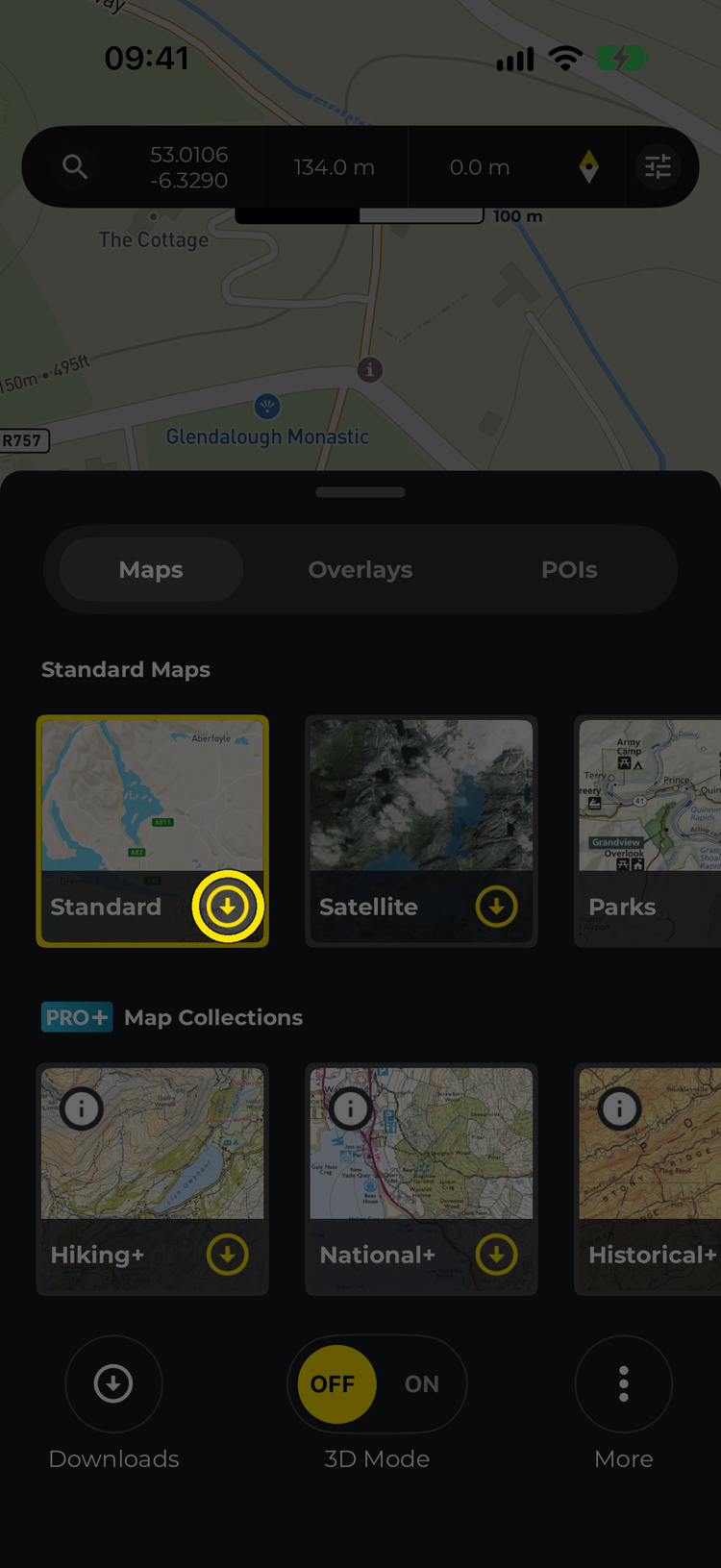
- Open the Map tab and tap Maps.
- Tap the yellow download icon on the map style you want.
- Move and zoom the map until the area you want is inside the green frame, then tap Confirm download area. If the frame turns red, the area is too big for one download. Zoom in until it’s green again.
- Give the area a name (HiiKER suggests one) and tap Download.
You’ll see the download’s progress on the map style. When it shows a green tick, the area is ready to use offline.

Download a hike
- Open any hike: one of ours, a hike you’ve planned, or one of your recordings.
- Tap Download.
- Tap the yellow download icon on the map style you want. HiiKER downloads the whole area of map for the hike.


Download a whole hike list
- On the Home tab, tap My Hike Lists and open a list.
- Tap Download.
- Tap the yellow download icon on the map style you want, then confirm. HiiKER downloads every hike in the list, which can take up to 10 minutes.
The list gets its own card in Downloads, so you can find and delete its hikes together.
Download from the Record tab
About to start a hike? Tap Download on the Record tab. If you’ve chosen a guide route, you can download the map for that hike. If you haven’t, you choose an area to download. Once the map is on your phone, the button says Downloaded.
Download every trail in an area
- Open the Search tab and move the map to the area you’re interested in.
- Tap the download button above the location button.
- Move and zoom the map so the trails you want are inside the frame, then tap Download with the number of trails (for example Download 24 trails).
- Give the download a name and tap Download.
HiiKER saves the trails together as a list in Downloads, so you can follow any of them with no signal. You can download up to 500 trails at a time. If there are more in the frame, the button says Over 500 trails, zoom in.
Find and manage your offline maps
On the Home tab, tap Downloads to see everything you’ve downloaded. Tap a download to open it.
To delete downloads:
- Tap the menu icon at the top right, then Delete (iPhone) or Delete Downloads (Android).
- Select the downloads you want to remove, or tap Select All.
- Tap the red Delete button, which shows how many you’ve selected, then confirm.
To delete a single download, or one map style of it, long-press it and choose Delete download.
Top tip: Areas you download are available offline everywhere in the HiiKER app. A dashed orange line on the map shows where your offline area ends.
FAQs
How do I download Ordnance Survey® (OS) maps for offline use?
Follow the steps above and choose the National+ map style. National+ is the map collection that includes OS mapping.
How do I view an offline map? Where do I find my offline maps?
On the Home tab, tap Downloads. You can open any downloaded hike or map area from there.
You can also open a hike from one of your lists or from My Planned Hikes, or go to a downloaded area on the main Map tab.
Does having offline maps mean HiiKER uses no data?
Not quite. Your downloaded areas are read from your device and use no data, but if you pan or zoom outside a downloaded area while you still have signal, HiiKER fetches those map tiles from our map server as normal. The dashed orange line on the map shows where your downloaded area ends.
If you want a guarantee that nothing is fetched (when you’re roaming abroad, for example), put your phone in airplane mode or turn off mobile data. HiiKER then draws only what you’ve downloaded. See How to reduce data usage on HiiKER.
How can I download larger areas of the map?
You can’t download more than one frame’s worth at a time. If the frame turns red, the area is over the limit for a single download. Offline maps can be large, so we recommend downloading the areas you need now. If you need more, download several smaller areas, but keep an eye on the space they take up on your phone.
Do I need PRO+ to download maps?
You need to be signed in to a HiiKER account to download maps. The map styles under Map Collections are part of PRO+, so you need a PRO+ subscription to download them.
Related: How to reduce data usage on HiiKER · How do I hide the offline map bounds? · HiiKER maps
