

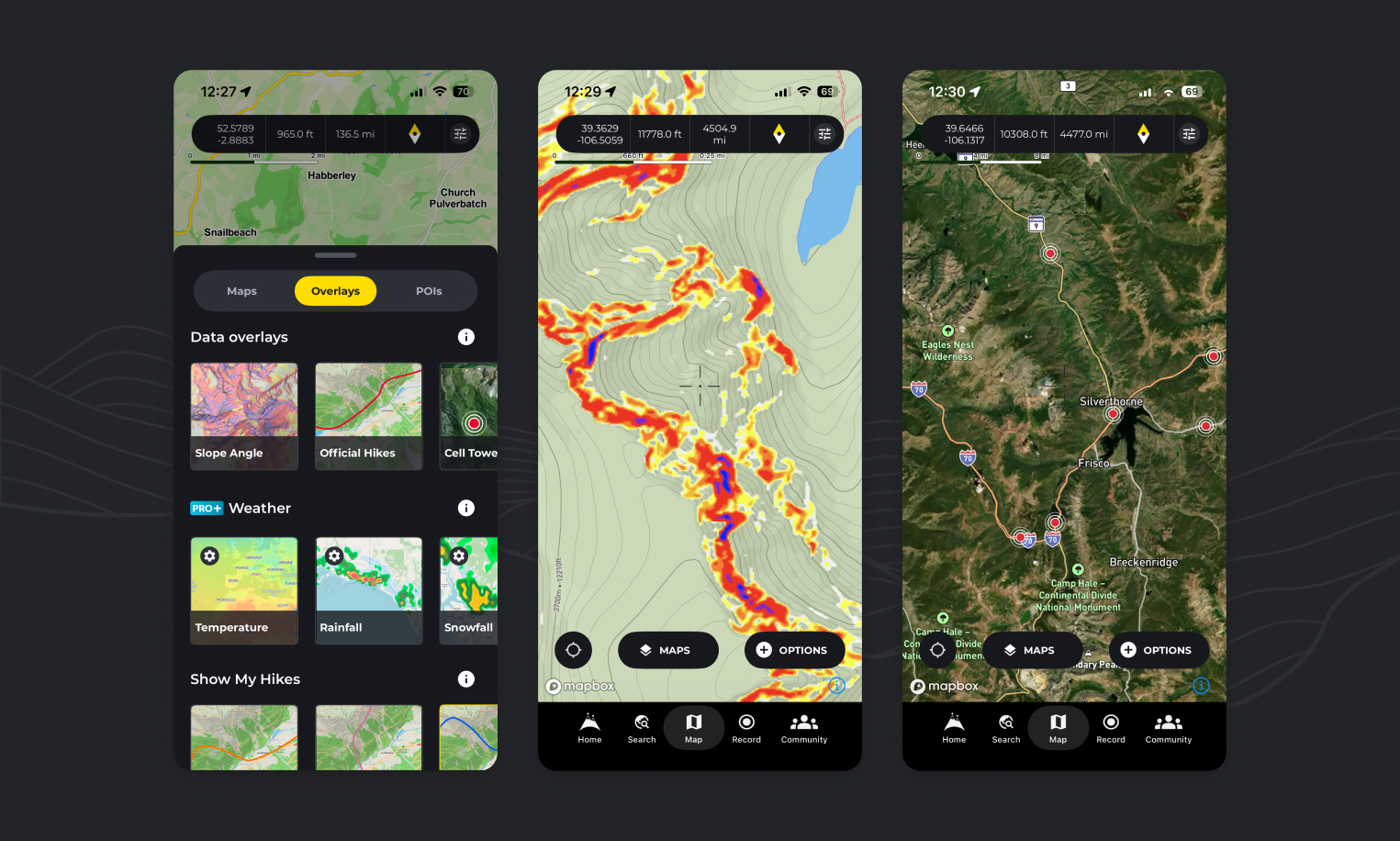
Overlays sit on top of whichever map style you’re using, adding extra information without changing the underlying map. This article is the complete reference: every overlay HiiKER offers, grouped exactly as they appear in the app.
How to turn an overlay on
- On any map page, tap the “Maps” button and switch to the “Overlays” tab.
- Tap any of the overlay options to show that data on the map. Tap it again to turn it off.
Overlays work with every map style, including the free Standard and Satellite maps and the PRO+ collections.
Every overlay available in HiiKER
The Overlays tab is split into three sections. This is the full list — there are no other overlays.
Data overlays (free)
- Heat Maps
- Slope Angle
- Cell Towers
- Official Hikes
- Public Access US
- Cycling Routes
My Hikes (free)
- Recordings
- Planned
- Completed
Weather (HiiKER PRO+)
- Temperature
- Cloud Cover
- Rainfall
- Snowfall
- Wind
Weather overlays are the only group that needs a subscription — the data overlays and My Hikes overlays are free for everyone. Only one weather overlay can be shown at a time, while data and My Hikes overlays can be combined.
The data overlays in detail
🔥🥾 Heat Maps — see where hikers actually go
Heatmaps surface the well-trodden lines — and the quiet alternatives. Represented by intensifying paths of public HiiKER user tracked data, they show you how to hike a well known path, or avoid it entirely.
🟡🔴 Slope Angle — visualise terrain steepness
The Slope Angle overlay helps you assess terrain severity at a glance, using a colour-coded system:
- 14–24° — green
- 24–30° — yellow
- 30–35° — amber
- 35–42° — orange
- 42°+ — red to purple
This highlights areas where extra caution may be needed, particularly on mountainous or winter paths. It’s ideal for risk assessment, route planning, and avoiding unexpected hazards.
📶 Cell Towers — plan for connectivity
The Cell Towers overlay displays the locations of nearby mobile network towers. This allows you to identify where you’re most likely to receive signal, choose campsites or rest stops with better coverage, and locate signal access points in case of emergency.
💡 Pro Tip: While terrain and weather can still affect coverage, being aware of the nearest tower gives you a much better chance of reconnecting when needed.
🥾 Official Hikes — explore with confidence
With this overlay, you can toggle on all 130,000+ verified HiiKER hike lines right on your map. It’s useful for visualising nearby official hikes, guiding your hike using verified routes, and plotting your own custom route using trusted hikes as a base.
Official hikes are drawn as red lines. If you’re seeing unexpected red lines on your map, this overlay is almost always the reason — see I see random red lines on my HiiKER map.
Public Access (US and UK) — where you’re allowed to walk
Shows public and protected land across the United States and the UK. In the US it’s colour-coded by access type, so you can see where you can go and what restrictions or permits apply before you set out. Full detail in Public land access overlay.
In the UK the The Countryside and Rights of Way Act 2000 (CROW Act) show the public right of access to land mapped as open country (mountain, moor, heath or down) or registered common land.
🚴 Cycling Routes — mapped cycle networks (UK)
Draws mapped cycling routes and networks on top of your chosen map. Handy when a hiking route shares ground with a cycle way, or when you’re planning a mixed walking and cycling trip. Currently available in UK only
My Hikes overlays
The My Hikes section puts your own hiking activity on the map: your Recordings, your Planned hikes, and your Completed hikes. Each is drawn in its own colour so you can tell them apart at a glance. See Map Overlays • My Hikes for more.
Weather overlays (PRO+)
Track Temperature, Cloud Cover, Rainfall, Snowfall and Wind across your map. These require a HiiKER PRO+ subscription. See Map Overlays • Weather for more.
How can I see all of the HiiKER hikes on one map?
You can view the entire collection of HiiKER hikes on your map by activating the “Official hikes” overlay as instructed above.
How can I view slope angle on the map?
By following the steps above and activating the “Slope Angle” overlay you will see a coloured representation of steep elevation on the map.
How can I check cell coverage / Network coverage on HiiKER?
By activating the “Cell Tower” overlay as instructed above, you can see cell tower locations, giving you a better indication of network availability in the area.
Is there an overlay for X?
The list above is complete. If an overlay isn’t named in it, HiiKER doesn’t currently offer it — though we add to the list over time, so it’s worth checking back.
