

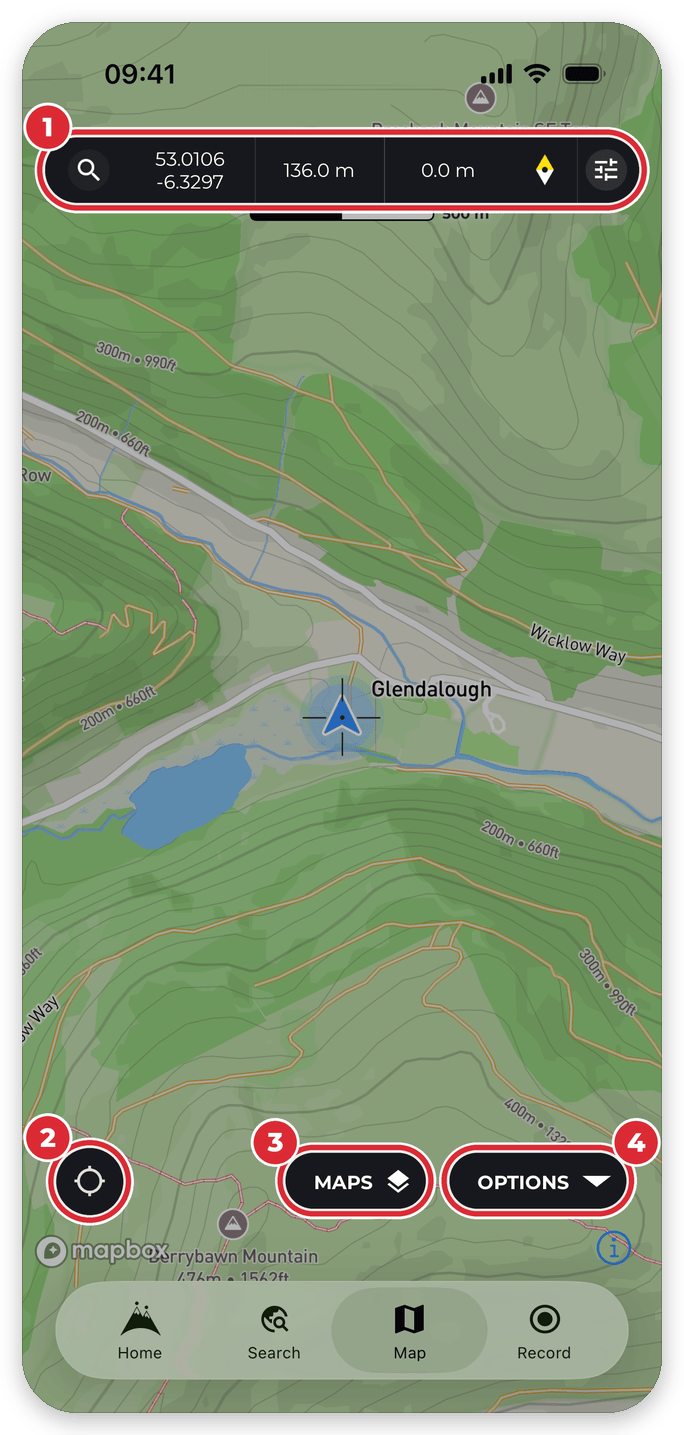
Prefer to explore without a guided route? The Map tab is a free-roaming map with tools for planning and navigating built in. Here’s what everything on the screen does.
In this article: Moving the map · Your location · The map information bar · The scale bar · The Maps button · The Options button
Moving around the map
- Pan — drag with one finger.
- Zoom — pinch with two fingers. Double-tap to zoom in; tap with two fingers to zoom out.
- Rotate — twist with two fingers.
- Tilt into 3D — drag up or down with two fingers.
- Back to north — tap the compass in the map information bar.
- Full screen — tap the map once to hide the buttons; tap again to bring them back.
If the map won’t rotate, Lock map to north is switched on. You’ll find it under Maps > More > Map settings.
Finding your location
Tap the location button in the bottom-left corner to centre the map on you. Tap it again to switch to compass mode, where the map turns to face the way your phone is pointing. Drag the map to go back to moving it by hand. See Show Location for more.
The map information bar
The bar along the top shows live information about the crosshair in the middle of the map. From left to right:
- Search — jump to a place, a hike or a grid reference.
- Three slots — coordinates, elevation and distance to the crosshair by default. You choose what each one shows.
- Compass — shows which way the map is turned. Tap it to turn the map back to north; press and hold it to show or hide the mini compass.
- Settings — choose what the slots show, your coordinate system, the crosshair style and more.
Find out more in Map information bar.
What does the scale bar show?
The scale bar, just below the map information bar, shows how distance on the screen relates to distance on the ground. As you zoom in and out it updates to show what a length on your screen represents (for example “100 m” or “1 km”), so you can judge distances and see how much ground the map covers.
What does the Maps button do?
Tap Maps to change the map style — from the free Standard and Satellite maps to the PRO+ collections such as National+ and Hiking+ — and to add overlays, download maps for offline use and turn on 3D. See How to change maps on HiiKER.
What does the Options button do?
Tap Options for a sheet of handy tools. On the Map tab it has two sections:

Navigation
- Plan route — plot your own route on the map, with distance, elevation and an estimated time.
- Waypoints — add your own markers to the map and manage the ones you’ve saved.
- Import GPX — load a route from a GPX file.
- Go to location — move the map to a set of coordinates, a grid reference or a place.
- Measure tool (PRO+) — measure the distance, time and climb between two points.
Tools
- Quick actions — add a shortcut button to the map for something you do often.
- Peak Viewer (PRO+) — point your camera at the hills to see the name of every peak in view.
- Live Locator (PRO+) — share your live location with friends and family.
- Print Map (PRO+) — make a printable PDF map of any area.
Contact Support, at the bottom of the sheet, puts you in touch with our support team.
Good to know
- PRO+ tools have a blue icon. Without PRO+, tapping one shows you what’s included and how to upgrade.
- The sheet changes with the map you’re on. On a hike’s map, or while you’re recording, it also has switches such as Reverse route and route tools such as Edit route or Change guide.
Related: Map information bar, How to change maps on HiiKER and Search for a map location or coordinates.
