

HiiKER uses your phone’s GPS to show where you are on the map, as long as it has permission to use your location.
In this article: Find yourself on the map · Compass mode · The 3D hike view · Good to know
Find yourself on the map
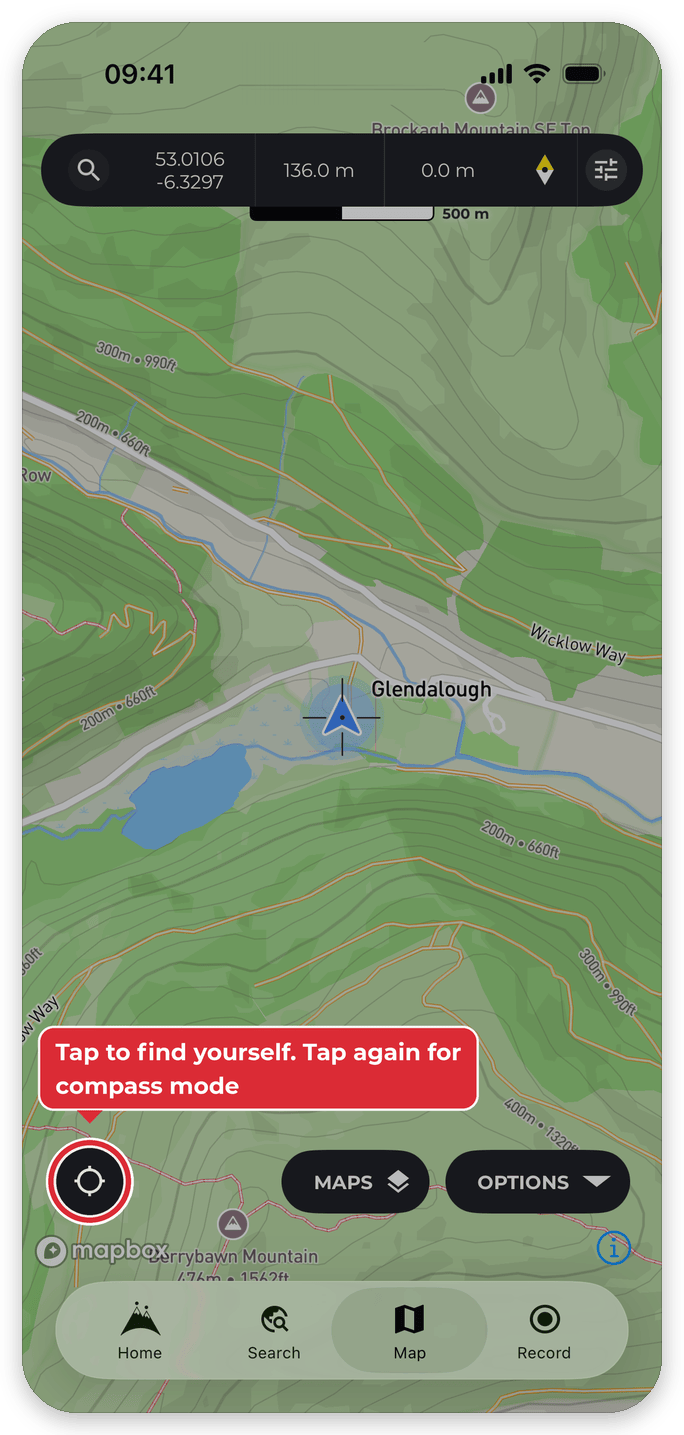
On any map, tap the location button in the bottom-left corner. The map moves to your current location and follows you as you walk.
Compass mode
Tap the location button again to switch to compass mode: the map turns to match the direction your phone is facing. To go back to moving the map by hand, drag the map.
If Lock map to north is switched on (in Maps > More > Map settings), HiiKER first asks whether to unlock the map, because compass mode needs the map to turn.
On the Record tab: the 3D hike view
On the Record tab, the second tap tilts the map into the 3D hike view instead of compass mode: a 3D view from just behind your position that turns as you walk. Tap the location button a third time to leave it.
When you record with turn-by-turn navigation guiding you, the 3D hike view also switches on by itself. To stop that, open Maps > More > Map settings from the Record tab and switch 3D hike view when recording off.
Good to know
- Can’t see your location dot? It may be hidden — tap the settings icon on the map information bar and check Hide current location marker is off. See My location dot has disappeared from the map!
- You can change the look and size of your location icon from the same settings screen, under Customise current location icon.
- If the location button does nothing, check that HiiKER is allowed to use your location in your phone’s settings.
Related: Map information bar and Turn-by-turn navigation.
