

Your HiiKER, Your Way with Quick Actions: We know everyone uses HiiKER differently. That’s why we’ve introduced Quick Actions! Now you can assign your go-to features to a dedicated button for lightning-fast access. Imagine instantly adding waypoints with a single tap, seamlessly switching between your favourite maps, or toggling 3D view on and off – it’s all possible with Quick Actions!
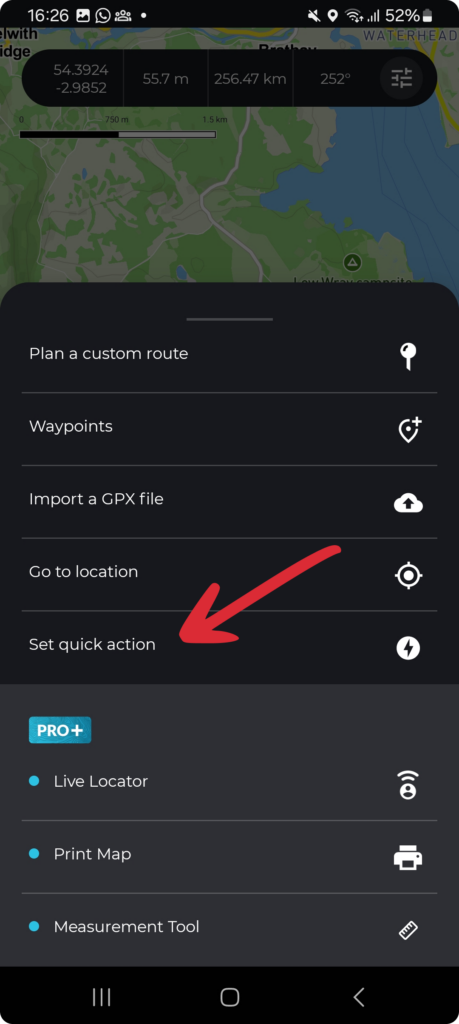
- On any HiiKER map page, tap on the “Options” button, then select the “Set Quick action” option

- From the settings page page, activate your quick action button

2. Assign an icon to the quick action button that suits your action

3. Assign the action that you wish to assign from the list.

4. View and test your quick action button on the map
Everyone uses HiiKER differently.
Maybe your a Waypoints user and way to toggle on and off your custom waypoints, or add them in a instant?
May you wish to toggle back and forth between your favourite map options.
Or want to toggle on and off your favourite POI categories.
It’s adjustable as your need it! You hike, your way!
How can I add many waypoints to the map quickly on HiiKER?
Assign a new quick action:
- Tap the options button on any map page
- Select “Set Quick action”
- Tap the toggle switch to activate you quick action button
- Assign “Create a Waypoint” as your quick action
- Close the Quick actions page.
- Tap your quick action button on the map to quick place a Waypoint
How can I quickly toggle between 2 maps
- Activate the first map you wish to toggle, e.g. Satellite
- Tap the options button on any map page
- Select “Set Quick action”
- Tap the toggle switch to activate you quick action button
- Select one of the “Toggle X map” options as the quick action, e.g. Toggle National+ collection
- Close the Quick actions page.
- Tap to toggle your quick action button and you can quickly switch between both maps
