

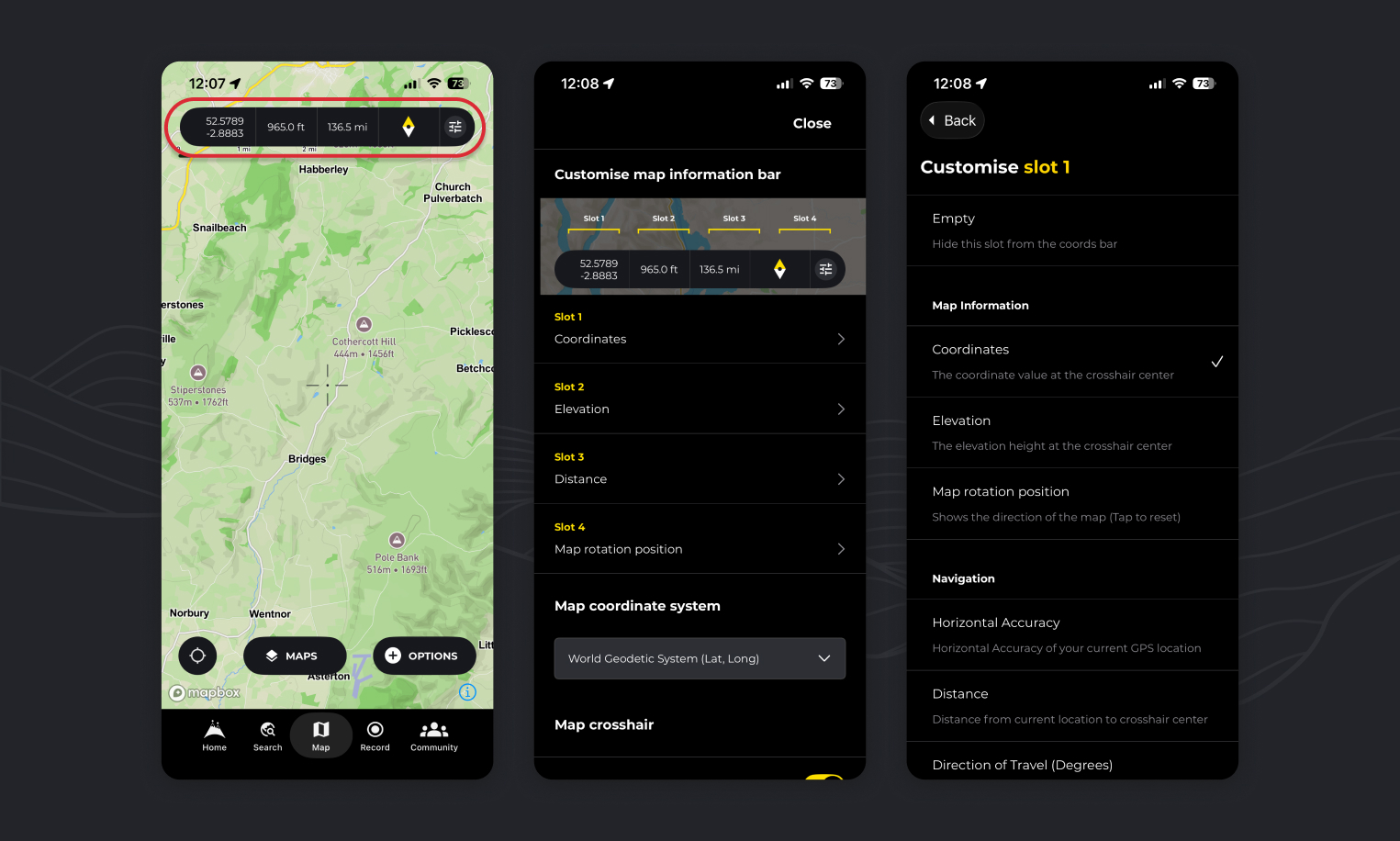
The map information bar features handy live data corresponding to your location and the map center crosshair such as coordinates, bearing, weather info and more.
You can quickly edit the information assigned to each slot in the Island as well as adjusting grid reference details and Crosshair style.
How do I customise the map information bar
- Tap on the settings icon to open the edit page.
- Select the “slot” that you wish to assign.
- Choose the data you would like to fill the slot
About each options:
Coordinates: This will show the coordinates represented at the crosshairs at the center of the map. It’s particularly handy for referencing and identifying and sharing locations in your preferred Map projection Settings (Remember you can tap these values while viewing a map to copy to your clipboard for sharing)
Edit your map information bar information:

Step 1:
Tap on the settings icon to open the edit page.

Step 2:
Select the “slot” that you wish to assign.
Step 3:
Choose the data you would like to see
About the options:

Coordinates: This will show the coordinates represented at the crosshairs at the center of the map. It’s particularly handy for referencing and identifying and sharing locations in your preferred Map projection Settings (Remember you can tap these values while viewing a map to copy to your clipboard for sharing)

Elevation: This will show the elevation represented at the crosshairs at the center of the map.

Accuracy: Your device uses GPS to figure out your location, and the “accuracy” tells you how precise that reading is. For instance, if the value is 10 meters, it means your actual position is likely within 10 meters of the spot indicated on the map.

Distance: A simple was to see distance from you own location to the crosshairs at the center of the map in a straight line (As the crow flies)

Direction of Travel (Degrees): The direction in which the device is orientated relative to due north and represented in degrees

Bearing to Map Center (Degrees): This tells you the direction you’d need to travel from your current spot to reach the map’s center. The bearing is given in degrees relative to north (so 0° is north, 90° is east, etc.). We use the Haversine formula to accurately calculate this angle by considering the Earth’s curvature.

Temperature (Degrees): Temperature value in degrees of the location at the crosshairs at the center of the map.

Rainfall (Current) (mm): Total precipitation sum of the preceding hour of the location at the crosshairs at the center of the map.

Rainfall (Forecast) (mm): Total precipitation sum of the next hour at the location at the crosshairs at the center of the map.

Snow depth (cm): Current snow depth in meters at the location at the crosshairs at the center of the map.

Dewpoint (Degrees): Temperature at which condensation forms. Higher dew point values generally mean more moisture in the air and often feel more humid, while lower dew points indicate drier conditions.

Visibility: The maximum distance at which you can clearly see an object, expressed in metres.

Wind Speed: The rate at which air is moving past a fixed point.

Cloud Cover (%): The percentage of the sky obscured by clouds, from 0% (completely clear) to 100% (fully overcast).
How do I change grid reference / Coordinates used on HiiKER?

- Tap the “settings” icon on the map info bar at the top of your map
- Scroll to the “map coordinate system” setting
- Choose from the list of options
We will continue to add more option over the coming months.

How do I customise or hide the crosshair on the map?
- Tap the “settings” icon on the map info bar at the top of your map
- Scroll to the “Choose crosshair” setting
- To deactivate the crosshair, toggle the “Activate crosshair” switch
- To change the style, select from one of the options
- To change the color, select a color option.
💡 Top tip: Miss Viewranger? Choose crosshair option 2 in red for a throwback to a great app!

How do I customise my location icon on HiiKER?
- Tap the “settings” icon on the map info bar at the top of your map
- Scroll to the “Customise current location icon” setting
- Select the option you wish to represent your current position on the map
- If it’s too small, increase the icon size
How to set UK grid on the map information bar on HiiKER
- Tap the “settings” icon on the map info bar at the top of your map
- Scroll to the “map coordinate system” setting
- Choose “Great Britain Grid Reference” from the options
How to set Irish grid on the map information bar on HiiKER
- Tap the “settings” icon on the map info bar at the top of your map
- Scroll to the “map coordinate system” setting
- Choose “Irish Grid Reference” from the options

Is there any way of getting it to show the elevation difference between the current location and the cross hair? I can see options for the horizontal distance, and showing the absolute height, but not the relative height.
Hey Simon, Thats added. Will be out in the next version! Thanks for the feedback.