

If you are one of the many users of Strava that have decided to move over to use HiiKER but want to make sure that you can carry over all of your planned and recorded hiking routes, follow these simple steps.
Since the news that HiiKER are offering Free Offline maps to all users, many are making the move from Strava to HiiKER. If you are one of these and want to make sure that you move all of your planned and recorded hikes, follow these simple steps.
The following steps is for the desktop versions of both platforms. You can also do this on both apps, but desktop will be a slightly less complicated process.
Step 1 – Exporting your routes from Strava
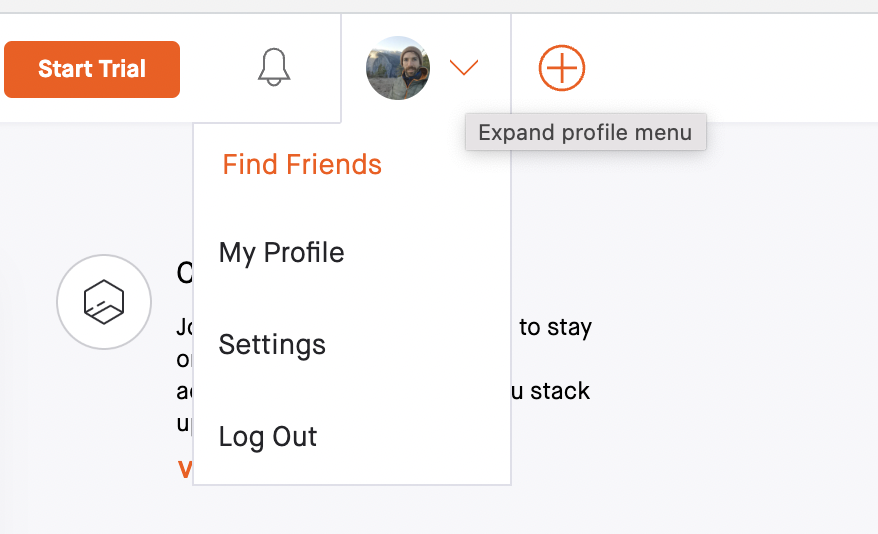
First thing to do in moving your routes from Strava to HiiKER, is to open your profile on Strava.
Select the activity you wish to export

When you open the activity, click on the menu button to the left of the activity map. Select “Export GPX” and save the route to your computer.

Step 2 – Importing your routes to HiiKER
When you have logged into your HiiKER account, open up the “Create a hike” at the top righthand corner of the screen.
Next you select “Upload GPX” and use the file that you have exported from Strava.

The route will then load on the map and you can save the trail to your “Save Plan”.

Step 3 – Accessing your imported route on the HiiKER App
Simply open your HiiKER app and ensure that you are logged in. Navigate to your profile page and open you My Hikes.

And that’s it! You can now move your favourite routes planned and recorded on Strava to HiiKER and use all the best features and maps that HiiKER has to offer.
Import a Trail on HiiKER Mobile
To import a trail on the HiiKER mobile app, follow these steps: Make sure to have GPX file ready to import

Step 1: Go to your profile
Open the HiiKER app and go to your Profile tab.
Step 2: Start planning a hike
Tap the Plan a hike card.
Step 3: Open options
On the map screen, tap the Options button.
Step 4: Import your GPX file
Select Import a GPX file, then choose a file from your device.

Step 5: Save your hike
Check the route details and tap save.
Step 6: Find your trail
Go back to your Profile and tap My Hikes.
Your imported trail will appear there.
Once saved, your trail will appear in My Hikes on HiiKER mobile, where you can view it, follow it, or record your hike.
