

HiiKER lets you personalise how route lines are drawn on the map. You can set a different colour, thickness and opacity for each kind of route — and because your choices are saved to your HiiKER account, they follow you across your phone, tablet and the web.
This article explains what each route type means, what you can change, and how to find the settings on the mobile app and on the web.
Customising route style on the mobile app
The steps are the same on iPhone, iPad and Android. From the map:
- Open the map styles menu (the layers button on the map).
- Tap More.
- Tap Customise route style.
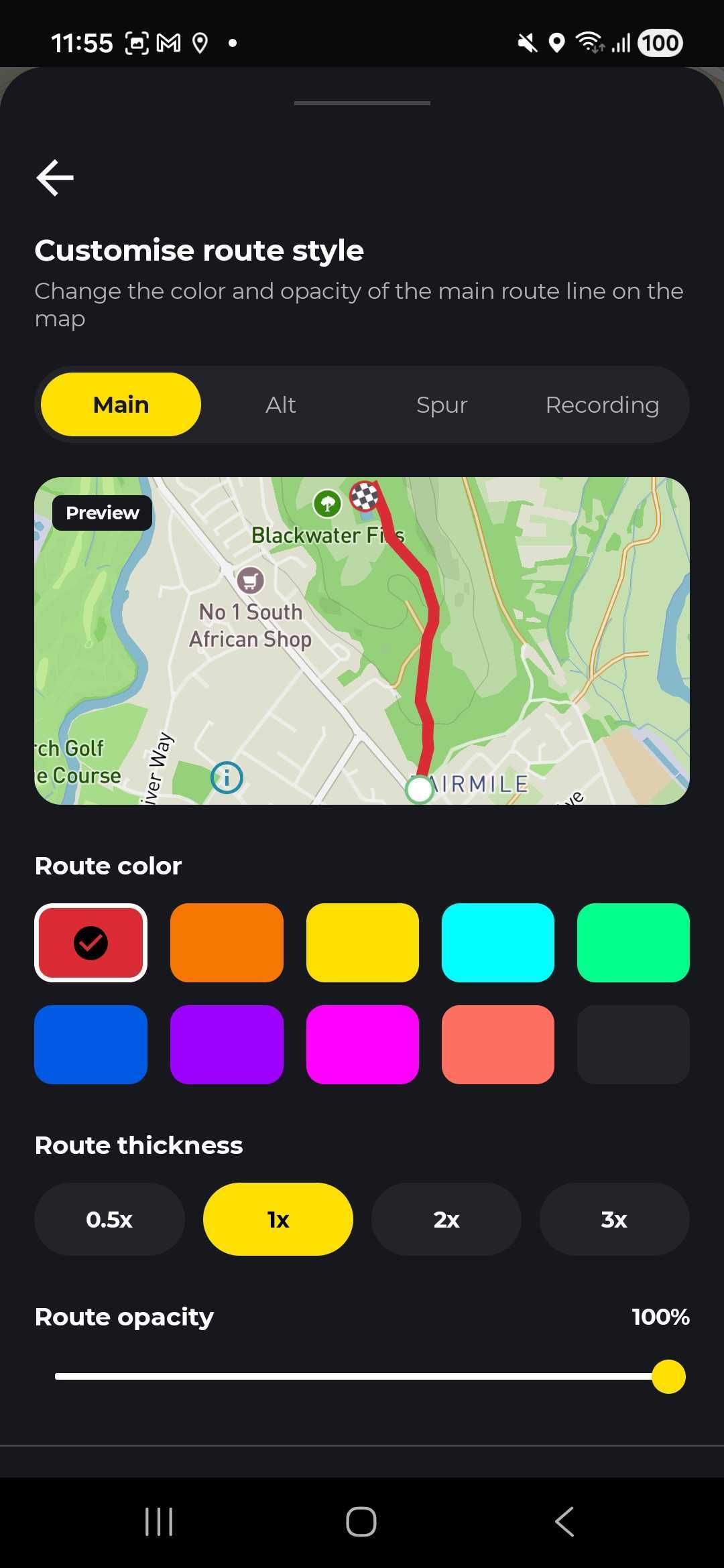
- Choose a route type tab — Main, Alt, Spur or Recording.
- Tap a colour, choose a thickness, and drag the opacity slider until it looks the way you want.
- For the Main, Alt and Spur routes you can also turn Hide mile markers on or off.
Customising route style on the web
From a map view on the web (for example a hike or recording map):
- Open the map menu and click More.
- Click Customise route style.
- Pick a route type tab, then set the colour, thickness and opacity.
- Click Reset to default at any time to undo your changes for that tab.
The Hide mile markers option isn’t available on the web — you’ll find it on the mobile app.
The four route types
Each kind of line on the map can be styled on its own, using the tabs at the top of the screen:
- Main — the primary route of a hike.
- Alt — alternative routes, or other ways to complete the hike.
- Spur — short side trails that branch off the main route, for example out to a viewpoint.
- Recording — the line drawn as you record your own hike.
What you can customise
For each route type you can adjust:
- Colour — pick from a palette of ten colours.
- Thickness — choose 0.5×, 1×, 2× or 3× the standard line width.
- Opacity — use the slider to make the line bold and solid, or light and faded.
- Hide mile markers — turn off the distance markers shown along the line. This is available on the mobile app for the Main, Alt and Spur routes.
Whenever you’d like to start over, a Reset to default button puts a route type back to its original look.
Your settings sync across your devices
As long as you’re signed in to the same HiiKER account, your route style choices are saved to your profile and used everywhere — your iPhone, iPad, Android device and the web all share the same look. There’s no need to set them up more than once.
By default, Main routes are red, Alt routes are cyan, Spur routes are magenta and your Recording line is purple, all at full thickness and opacity. If you’d ever like to get back to that, just tap Reset to default on the route type you want to restore.
