

Your phone died halfway up, you stopped the recording for lunch and forgot to start it again, or a two-day walk ended up as two recordings. Merge recordings stitches up to five of your recordings together into one, in the order you walked them, so the whole hike sits in one place with one track, one set of stats and all your photos.
In this article: Merge your recordings · Choosing recordings · What the merged recording keeps · Keeping or binning the originals · If it doesn’t work · Good to know
Merge your recordings
In the app (iPhone and Android)
- On the Home tab, tap My Recordings.
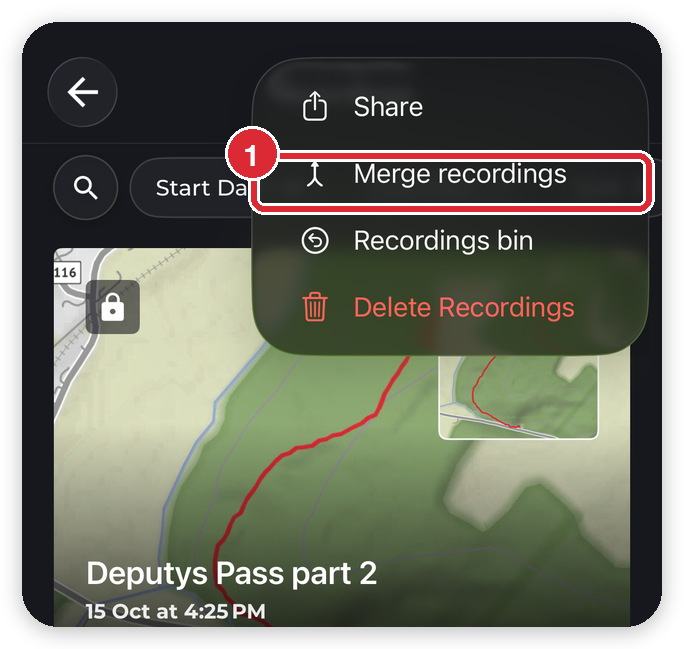
- Tap the three-dot menu at the top right and choose Merge recordings.
- Under Your recordings, tap each recording you want to join. You can pick between two and five.
- Check the preview at the top, then tap Merge 2 recordings (the number matches how many you’ve picked).
- Give the merged recording a Name, decide whether to Move originals to bin, and tap Merge.


HiiKER builds the new recording and opens it straight away. It also appears in My Recordings alongside your other hikes.
Merging is done in the app. There’s no merge button on the HiiKER website yet, but the merged recording shows up there like any other.
Choosing recordings
- Two to five at a time. The counter at the top right (for example 2/5) shows how many you’ve picked. Until you’ve chosen two, the button reads Select at least 2 recordings. Try to pick a sixth and HiiKER tells you “You can merge up to 5 recordings at a time”. Tap a ticked recording again to untick it.
- Order doesn’t matter. However you tap them, HiiKER joins the recordings in the order you recorded them, earliest first.
- Only your own, uploaded recordings. The list shows the recordings saved to your HiiKER account. A recording you’ve just saved with no signal won’t be there until it has finished uploading, and recordings in the bin aren’t listed.
As you pick, the map shows each recording’s track, and the row underneath adds up the Distance, Elevation Gain and Moving time of the merged recording. If there’s a gap between where one recording ends and the next starts, a chip on the map shows it, for example “1 gap joined · 350 m”.

What the merged recording keeps
Merging makes a brand-new recording. Your originals aren’t changed.
- Track: the recordings are joined end to end in time order. Any gap between one recording’s finish and the next one’s start is bridged with a straight line, and each original stays a separate leg of the hike.
- Distance: the total of all the recordings, plus the straight-line gaps between them.
- Time: the time from each recording, added together. Time between recordings (an overnight stop, say) isn’t counted.
- Elevation: worked out again for the whole merged track, so it can differ a little from the preview.
- Photos: every photo from every recording is copied across. The cover photo comes from the earliest recording that has one.
- Heart rate and steps from a connected watch are carried over, along with the pauses and restarts from each recording.
- Peaks: HiiKER checks the merged track for peaks, just as it does for a new recording, so summits you passed show on the merged recording.
- Name: whatever you type in the Name box. It starts with the name of the earliest recording you picked.
- Date: the date of the earliest recording.
- Who can see it: if any of the originals is private, the merged recording is private too. If they’re all public, it’s public.
Some things stay with the originals and aren’t copied: the description, the hike a recording was linked to, and any comments or likes. Add a description or link a hike to the merged recording once it’s made.
Keeping or binning the originals
The Move originals to bin switch on the last step is off to start with.
- Off: you keep the originals and get the merged recording as well, so the same hike appears more than once in My Recordings and in your stats until you delete the originals.
- On: the originals go to the Recordings bin as part of the merge, leaving just the merged recording. They stay in the bin for 7 days, then they’re gone for good.
To get an original back, go to My Recordings, tap the three-dot menu and choose Recordings bin, then restore it. Restoring an original doesn’t undo the merge, so you’ll have both again. If you don’t want the merged recording any more, delete it like any other recording. See I discarded a recording — can I get it back?
If it doesn’t work
Merging happens on HiiKER’s servers, so you need an internet connection. If it fails, you’ll see Couldn’t merge recordings with the reason underneath. Nothing has been changed, so you can try again.
- “Check your connection and try again.” HiiKER couldn’t reach the server. Wait until you have signal or Wi-Fi.
- “These recordings are too long to merge…” Together, the recordings have more than 50,000 track points. Merge fewer at a time.
- “Recordings not found…” One of the recordings has been deleted or moved to the bin since the list loaded, perhaps from another device. Close the screen and start again.
- A recording is missing from the list. It may not have finished uploading yet. Open My Recordings while you’re online and wait for it to upload, then try again.
Good to know
- It’s free. Anyone with a HiiKER account can merge recordings. You don’t need PRO+.
- Your photos are safe. The merged recording keeps its own copies, so its photos stay even after the originals leave the bin.
- Strava: if your account is connected to Strava, the merged recording isn’t sent there, so you don’t end up with the same hike on Strava twice.
- Need more than five? A merged recording is an ordinary recording, so you can merge it again with more recordings.
- On Android, Merge recordings is greyed out in the menu until you have at least two recordings.
Quick reference
- Merge: Home > My Recordings > three-dot menu > Merge recordings > pick 2–5 > Merge 2 recordings > Name > Merge
- Order: always the order you recorded them, earliest first
- Originals: kept, unless you turn on Move originals to bin (restorable for 7 days)
- Needs: an internet connection, and recordings that have finished uploading
Related: How to record a hike on HiiKER · How do I continue a previous recording? · I discarded a recording — can I get it back?
