

Which kilometre was your fastest, and where did the climb slow you down? Pace splits break a recorded hike into equal stretches, a kilometre or a mile to start with, and show your pace on each one as a bar. Split times lists every split with its time, pace and change in height.
In this article: Open your splits · Read the chart · Change the split length · Split times · When splits don’t show · Good to know
Open your splits
In the app (iPhone and Android)
- Open a recording, for example from My Recordings on the Home tab.
- Swipe the stats cards under the map until you reach Pace. It’s the last card.
- Tap View splits. The splits chart opens under the card, with one bar per split.
- Tap or drag across the bars to see any split. Your fastest split is picked to start with.
- Tap All splits to open the full Split times screen.
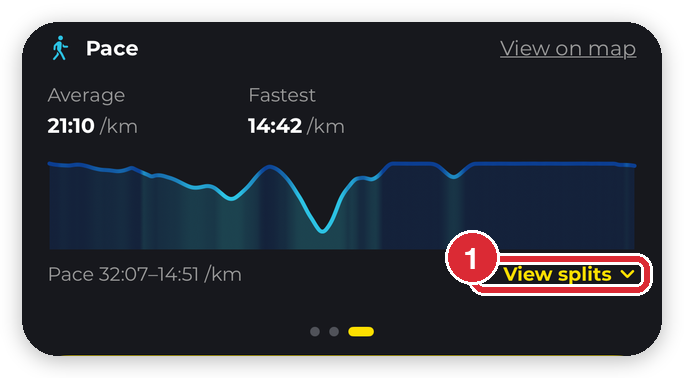

To close the chart, tap Hide splits or swipe to another card.
Read the chart
- Taller means faster. Your fastest split is the tallest bar, and its pace is in yellow.
- A narrow last bar is a shorter final split, for example the last 0.7 km of a 7.7 km hike.
- The line under the chart describes the split you picked: where it ends (for example Km 7), a FASTEST or SLOWEST badge when it’s either, its pace, its time and how much height you gained or lost. If the recording has heart rate from a watch, your average heart rate for the split is shown too.
- Not every bar labelled? On a long hike there isn’t room for every pace, so only the fastest and slowest are labelled. Drag across the bars to see the rest.
Change the split length
Tap − or + next to Split every. You can split a hike every 0.25, 0.5, 1, 2, 5, 10 or 25 kilometres, or miles if your measurement units are set to miles.
- HiiKER picks a starting length that gives up to 30 splits: 0.25 for a walk under 1 km, 0.5 for one under 3 km, and the smallest whole step that fits for longer hikes.
- − greys out when a shorter length would give more than 100 splits, and + greys out when a longer one would give fewer than 2.
- The chart and the Split times screen always use the same length, so a change in one shows in the other.
Split times
Tap All splits under the chart. At the top you’ll see the recording’s distance and elevation gain, then your Avg pace, Fastest split and Moving time. Under the chart is a table with one row per split:
- Km (or Mi): where the split ends.
- Time: how long the split took, not counting pauses.
- Pace: your pace on that split. The fastest is in yellow.
- vs avg: how much faster (green, with a minus) or slower (orange, with a plus) the split was than your average pace.
- Elev: the height you gained or lost over the split, in metres or feet.
- HR: your average heart rate, when the recording has heart rate from a watch.
Tap a column heading to sort by it, for example Pace to put your fastest split first. Tap it again to reverse the order. Tap a row to pick that split on the chart. The line above the table then shows its climb and descent separately, for example +0 / −129 m.

When splits don’t show
- No Pace card: the recording has no times on its points. This happens with some imported files. A GPX file that includes times gets splits like any other recording.
- No View splits: the recording is shorter than 0.5 km (or 0.5 mi), which is too short to split.
Good to know
- Free for everyone. Splits don’t need PRO+.
- Any recording you can open. Splits show on other people’s recordings too, not just your own.
- A few metres at the end don’t count. A last split shorter than a fifth of the split length is never marked fastest or slowest.
- In the app only. Splits are in the HiiKER app on iPhone and Android, not on the website.
For the other stats cards, see Heart rate zones, pace and steps on your recordings and Ascent rate, descent rate and gradient on your recordings. To bring in hikes recorded elsewhere, see How do I import files into the HiiKER app?
