

A route card breaks one day of a hike into numbered sections, with everything you need to walk each one with a map and compass: the grid reference and height of the next point, the compass bearing to it, the distance, the climb, how long it should take and when you should get there. Add notes, escape routes and rests, then print it, share it or carry it on your phone.
In this article: Open a route card · Read the card · Move, add and name points · Pace, start time and party · Print and share · Offline · Good to know
Open a route card
Route cards work on HiiKER hikes and on hikes you’ve planned yourself. They’re a PRO+ feature.
On the website
- Open the hike’s page.
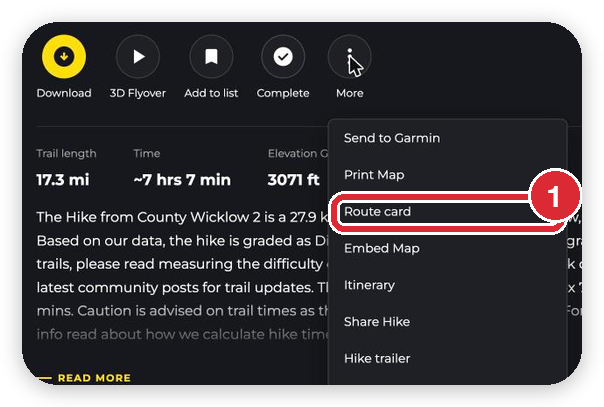
- Click More under the hike’s photo, then Route card.
- On a hike of more than one day, pick the day in the Day box at the top. Each day has its own card.
In the app (iPhone and Android)
- Open the hike.
- Tap Route card in the row of round buttons under the hike’s name.
- On a hike of more than one day, tap a day at the top of the card to switch to it.
The first time you open a day, HiiKER suggests the points for you: one about every 2 km, placed on a summit, a highlight or a waypoint when there’s one nearby, and on a sharp turn otherwise. Change them as much as you like.

Read the card
Points are numbered from 0 (the start) to the finish. A section is the walk between two points, labelled with both numbers: 0–1 is from the start to point 1, 1–2 from point 1 to point 2, and so on. The labels are the same on the map, the card and the printout, so you can always match them up. Each section shows:
- To point: the point the section ends at, and its grid reference and height.
- Bearing G / M: the bearing from one point to the next, from grid north and from magnetic north. Set your compass to the magnetic one.
- km and Total: the length of the section along the hike, and the distance walked so far.
- ↑ m and ↓ m: how far you climb and drop on the section.
- Time and ETA: how long the section should take at your pace, and the time you should reach the point, rests included.
Under the sections are the day’s totals: distance, climb and drop, walking time plus rests, your finish time and, once you’ve set a date, how much daylight you’ll have left at the end.

Move, add and name points
- Move a point: drag it on the map. It slides along the hike, so it always stays on your route, and it can’t pass the points either side of it. The start and finish don’t move.
- Add a point: pick a section, then + Add point (+ Point in the app). The new point goes half way along that section, ready to drag into place.
- Start again: Start from puts the points back where HiiKER suggests them (Suggested points) or on the points the hike was drawn with in the planner (Planner points). Your pace, start time and party are kept.
Select a section to fill in the point it ends at:
- Name: what’s there, for example a summit, a bridge or a car park. Unnamed points show as Point 3.
- Note: anything to remember there, such as Boggy, stay on the boardwalk.
- Escape route: where to go if you need to cut the day short from that point. It’s shown in orange on the card.
- Rest: none, 15, 30 or 45 minutes. The rest is added to every arrival time after it, and the card shows when you’ll set off again.
- Remove point: joins the two sections either side of it into one.

On the website your changes save as you go. In the app, tap Edit on the card, make your changes on the map and in the list of sections, then tap Save. Cancel throws the changes away.
Pace, start time and party
On the website these are the boxes above the map. In the app, tap the settings button in the editor.
- Date: the day you’re walking. With a date, the card shows sunrise and sunset and how much daylight you’ll have left at the finish.
- Start: the time you set off. Every arrival time counts on from it.
- Pace: your walking speed on the flat, 4 km/h to start with.
- Climb: the extra time you allow for every 100 m you climb, 10 minutes to start with. Together with your pace, this is Naismith’s rule, the method most route-card courses teach.
- Grid: the coordinate system the grid references are written in. HiiKER uses the national grid of the country the hike is in: the Irish Grid in Ireland and Northern Ireland, the British National Grid in Great Britain and the New Zealand Map Grid in New Zealand. Choose another one, such as UTM or latitude and longitude, to match your paper map.
- Party, names and leader mobile: who’s walking and how to reach the leader. They’re printed at the top of the card, so whoever you leave it with knows who to expect back.
Print and share
Download PDF on the website, or Share PDF in the app, makes a printable A4 card. The first page is the card itself: your party, the leader’s mobile, your pace, the day’s daylight and the emergency number, then every section with its grid reference, height, bearings, distances, climb, times, notes and escape routes. The second page is a section map: the hike on the grid, with the same numbered points and section labels, a north arrow and a scale.


The section map shows your route and points, not the land around them, so carry it with a proper map of the area. To print the route on a full topographic map, use Print Maps.
Share link turns on a read-only link to the card. Anyone with the link can see it, with or without a HiiKER account, which makes it a good way to leave your route with someone at home. Stop sharing turns the link off. If you share again later, you get a new link and the old one stops working. While a card is shared, the QR code on the printout opens the shared card.
Offline
Your saved route cards are stored on your phone with the hike when you download it, so you can read them on the hill with no signal. Download the hike (or open it once with signal) after you’ve made the card. When the app is showing the stored copy, the card says Offline. Editing, saving and Share PDF need a connection.
Good to know
- Bearings are straight lines. A section’s bearing points straight from one point to the next. Where the path winds, follow the path and use the bearing to check your direction, or add more points so each section is closer to straight.
- Magnetic bearings use this year’s declination. The note under the card says how much to add to a grid bearing for your compass where you’re walking, for example magnetic = grid +3°.
- Times are a guide. They come from your pace and climb settings, not from the ground, the weather or the people you’re walking with. Leave yourself time to spare, especially near sunset.
- The card follows the hike. If the hike’s route changes, the card is worked out again along the new route, and your points keep their distance along it.
- Only you can see your card until you share the link. You can have one card for each day of a hike.
- PRO+: without PRO+ you can see the first section of a card. Making, saving, sharing and printing route cards needs HiiKER PRO+.
- Not for recordings. Route cards are for hikes you’re going to walk, so they’re on HiiKER hikes and your planned hikes, not on recordings.
To choose your grid everywhere else in HiiKER, see Set your grid preference.
