

How quickly did you gain height on that climb? The Ascent card on a recording shows your ascent rate, descent rate and steepest gradient, plus the stretch where you climbed fastest. It’s the second stats card, right after Summary.
In this article: Find the Ascent card · What the numbers mean · The gradient graph · Graphs on the map · Good to know
Find the Ascent card
In the app (iPhone and Android)
- Open a recording, for example from My Recordings on the Home tab.
- Under the map image, swipe the Summary card to the left. The next card is Ascent.
- Tap View on map to see the gradient along the route.
What the numbers mean
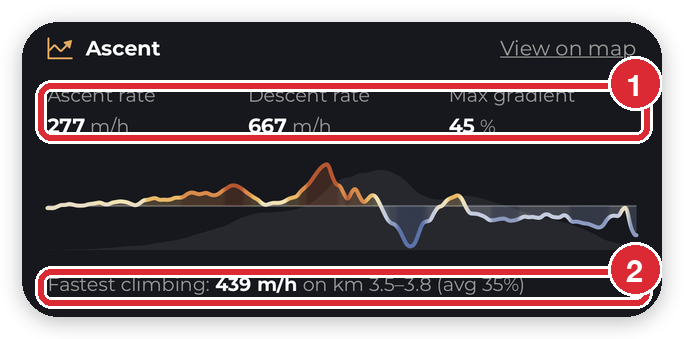
- Ascent rate: how many metres (or feet) you climbed per hour while going uphill, for example 277 m/h. Only stretches steeper than 3% count, so flat walking doesn’t drag it down.
- Descent rate: the same for going downhill.
- Time climbing: shown in place of Descent rate when the hike had no real descent, for example a walk up a hill and a bus back down.
- Max gradient: the steepest stretch of the hike, as a percentage. 10% means 10 m of height for every 100 m you walk.
- Fastest climbing: the stretch of about 300 m where you gained height fastest, where it was and how steep it was, for example Fastest climbing: 439 m/h on km 3.5–3.8 (avg 35%).
Recordings without times. Rates need to know when you were where. Some imported files have no times, so for those the card shows Max gradient, Elevation gain and Descent instead, and Steepest section in place of Fastest climbing.
The gradient graph
The graph shows the gradient from start to finish: uphill above the middle line, downhill below it, over a faint outline of the elevation profile.
- Orange is climbing. The deeper the orange, the faster you were gaining height.
- Blue is descending.
- Pale is close to flat, within 3% either way.
On a recording without times, the colours show how steep each stretch is rather than how fast you climbed it.
Graphs on the map
Tap View on map on any stats card to open the recording’s map with that card’s graph at the bottom.
- Every graph is drawn over your elevation profile in grey, so you can see where on the hill you sped up, slowed down or worked hardest.
- Use the arrows either side of the graph’s title to switch between Elevation, Ascent, Heart rate, Steps and Pace. Graphs the recording has no data for are skipped.
- The route on the map takes on the graph’s colours. On Ascent, it’s orange where you climbed and blue where you came down.
- Drag sideways along the graph to read any point, for example Gradient: 12%, with the spot marked on the route.

Good to know
- No Ascent card? The recording has no elevation data.
- Free for everyone. The Ascent card and graphs don’t need PRO+, and they show on other people’s recordings too.
- Metres or feet follow your measurement units in Home > Settings > App Settings > Customize > Measurement Units.
- On the website too. On hiiker.app, open a recording and choose the Ascent tab under Activity to see the same numbers and graph.
For pace per kilometre or mile, see Pace splits and split times on your recordings. For heart rate, steps and pace, see Heart rate zones, pace and steps on your recordings.
