

Clearing HiiKER’s cached data can fix problems caused by old or corrupt data, and it frees up space on your phone. If something isn’t working as it should, our support team may ask you to try it.
Everything is under Manage storage, where you clear each type of data separately. Your offline maps, recordings and planned hikes are never removed from there.
In this article: Clear the cache · What each option clears · Good to know
Clear the cache (iPhone and Android)
- Go to the Home page and tap the settings icon (the cog).
- Tap App Settings.
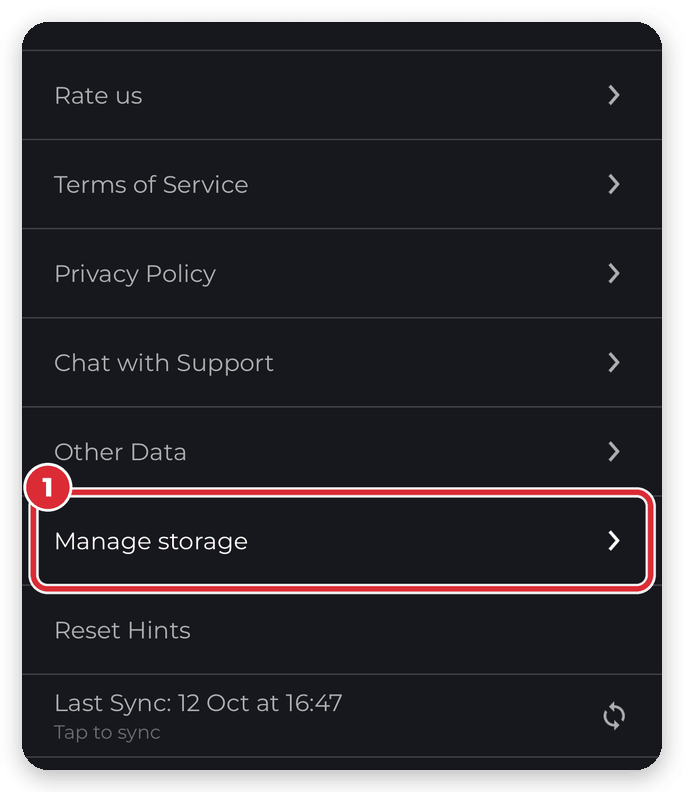
- Tap Manage storage. On iPhone it’s near the bottom of the list; on Android it’s just below Connect with other apps.
- Tap Clear next to the data you want to remove, then tap Clear again to confirm.
If support asked you to clear your cache, start with Trail data & requests. HiiKER shows how much space it freed at the bottom of the screen.
On iPhone

On Android


What each option clears
- Trail data & requests — cached trail information, searches and map styles. Trail details reload the next time you open them. Your downloads, photos and recordings aren’t affected.
- Media — photos, audio guides and videos that the app can download again. Your downloaded areas still work offline, but their photos and audio guides won’t play until you’re back online.
- Elevation data — terrain and elevation detail used for 3D and hill shading. It downloads again as you browse. Your downloaded areas keep their own elevation data.
- Offline downloads — shown so you can see how much space your offline maps use, but they can’t be cleared here. Tap Manage to remove areas one at a time in Manage Offline Map Downloads.
Good to know
- Clear the cache when you have a good connection. Anything you open afterwards loads again from the internet, so don’t do it on the trail.
- The line at the top of Manage storage shows how much space can be cleared and how much is free on your phone.
- Older versions of the app had a single Clear cached data option that cleared everything at once (on iPhone it removed your offline maps too). Manage storage replaced it and never removes your downloads.
Need to free up more space? See How do I download offline maps on HiiKER? for removing downloaded areas, and How to reduce data usage on HiiKER.
