

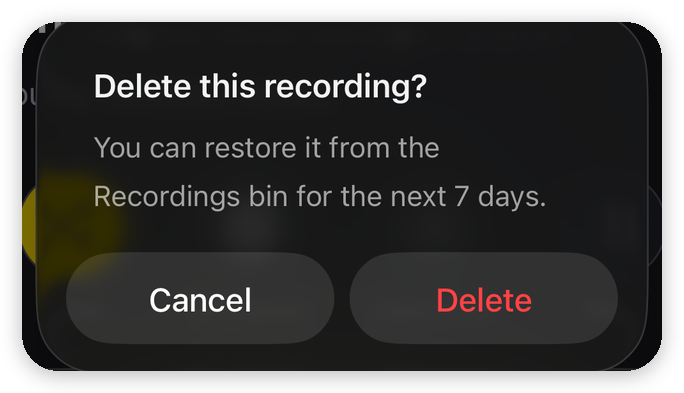
You can delete a recording from the recording itself, or delete several at once from My Recordings. A deleted recording goes to the Recordings bin for 7 days, so you can get it back. If it bagged any peaks, HiiKER also asks whether to keep them.
In this article: Delete a recording · Delete several recordings · Keep or remove bagged peaks · Get a recording back
Delete a recording
In the app (iPhone and Android)
- Open the recording, for example from My Recordings on the Home tab.
- Tap More, then Delete recording at the bottom of the menu.
- Tap Delete to confirm.
- If the recording bagged any peaks, choose Keep peaks or Remove peaks. See Keep or remove bagged peaks below.
Delete several recordings
- Open My Recordings on the Home tab.
- Tap the ⋮ menu at the top right, then Delete Recordings.
- Tick the recordings you want to delete, then delete and confirm.
- If any of them bagged peaks, you’re asked about the peaks once, for all of them together.
Keep or remove bagged peaks
Peaks are bagged from your recordings. When you delete a recording that bagged peaks, HiiKER asks Remove bagged peaks too? The recording is deleted whichever you choose. You’re only choosing what happens to the peaks.
- Keep peaks: the peaks stay bagged in My Peaks and count towards your lists and leaderboards. Choose this if you really climbed them, for example if you’re deleting a duplicate recording of the same walk.
- Remove peaks: the peaks this recording bagged come off My Peaks. Choose this if the recording was a mistake, such as a drive over a pass that bagged a summit you never walked.
Before you tap Remove peaks:
- Peaks you’ve also bagged on another recording stay bagged. Only peaks this recording alone bagged are removed.
- It can’t be undone. Restoring the recording from the bin brings the recording back, but not its peaks.
New to peak bagging? See How peak bagging works in HiiKER.
Get a recording back
Deleted recordings stay in the Recordings bin for 7 days, and you can restore them from there. After 7 days they’re deleted for good. See I discarded a recording — can I get it back?
Only want to get rid of part of a recording? Use Crop recording in the recording’s More menu instead.
