

You can use HiiKER inside ChatGPT, Claude and other AI assistants that support connectors. Once connected, you can ask the assistant to find hikes, show a route on a map, or add hikes to your lists, all without leaving the chat.
Connect HiiKER to ChatGPT or Claude
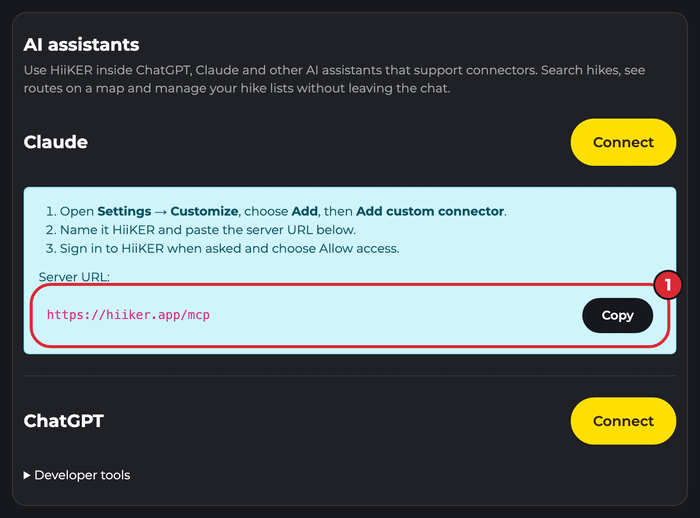
- On the HiiKER website, sign in and open Integrations from your profile. Under AI assistants, choose Connect next to Claude or ChatGPT and copy the server URL.
- Add HiiKER to your assistant:
- ChatGPT: open Plugins, choose Add at the top right, then Custom MCP server.
- Claude: open Settings → Customize, choose Add, then Add custom connector.
- Name it HiiKER and paste the server URL.
- When asked, sign in to HiiKER and choose Allow access.

That’s it. Start a new chat and ask something like “Find a 10 km loop hike near Glendalough” or “Add the Wicklow Way to my Summer list”.
In the HiiKER app, open Connect apps in Settings and tap AI assistants to come back to this guide.

What the assistant can do
- Search hikes by place, distance, difficulty or features.
- Show a hike’s route with its start and end points.
- Manage your hike lists: create lists and add or remove hikes.
- Look through your recordings and waypoints, and tidy them up.
The assistant only sees your own HiiKER account, and only after you allow it.
Disconnect an assistant
Open Integrations on the website. Under AI assistants, open the list of connections and choose Revoke next to one, or Disconnect all. You can also remove HiiKER in your assistant’s own settings.
Using Claude Code or another developer tool
Tools that take a token instead of a sign-in can use one from Integrations → AI assistants → Developer tools. Create a token there and copy the command shown with it. The token is shown only once, so keep it somewhere safe and revoke it if it’s ever shared.
