

Looking to do this in the HiiKER app? See How to use the main map in the app.
The interactive map at hiiker.app/map is the heart of the HiiKER website. It’s free for everyone — pan around, discover trails and check the terrain before you commit to a hike.
In this article: Map controls · Map styles · Overlays · On this map · Map tools · Information bar and settings
Getting around the map
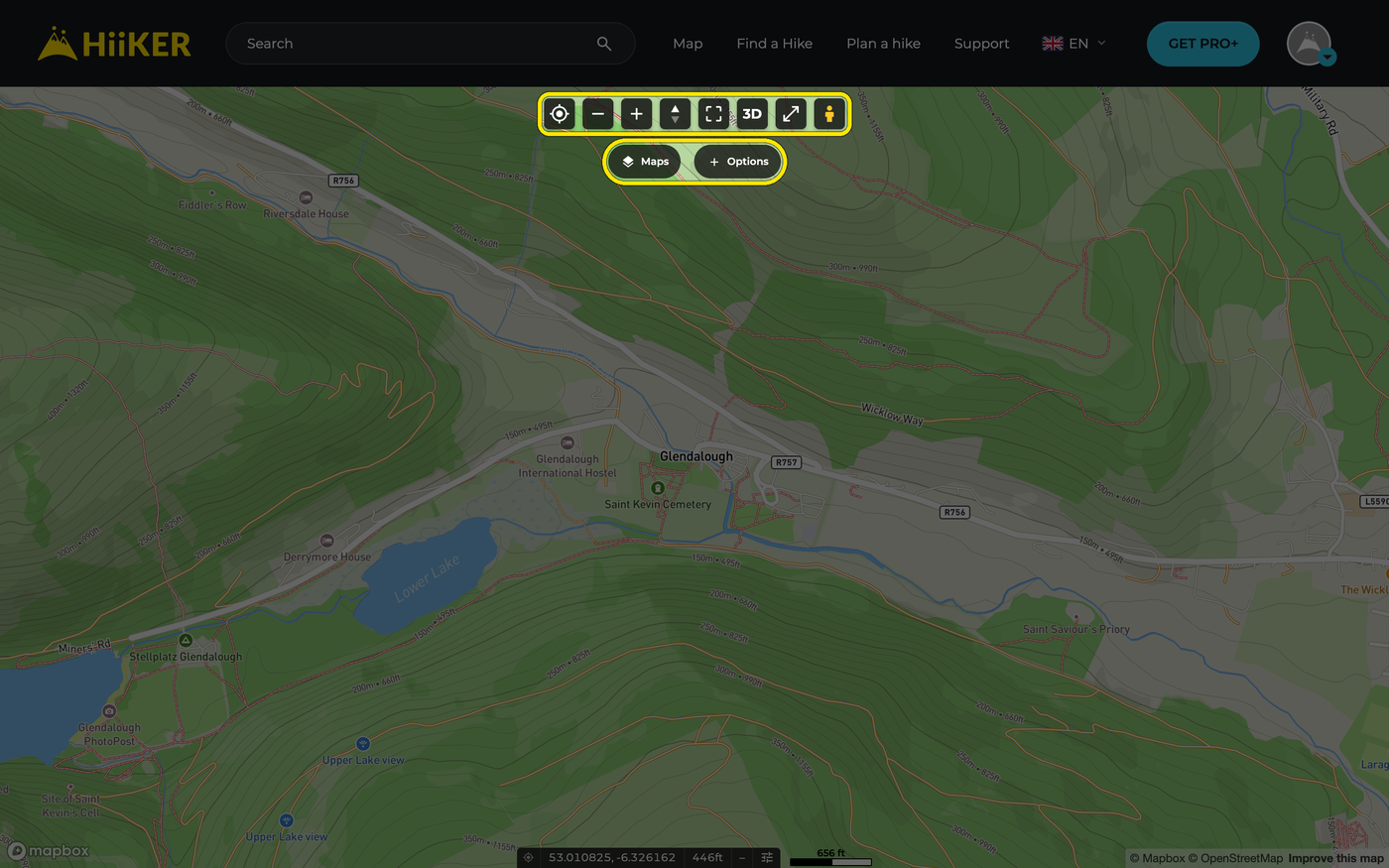
The buttons along the top of the map, from left to right:
- My location — centre the map on where you are.
- Zoom out / Zoom in — or use your mouse wheel or trackpad.
- Reset bearing and tilt — turn the map back to north-up and flat.
- Fit map to bounds — zoom right out (on a hike’s map, it fits the whole route on screen).
- 3D — switch to a 3D view of the terrain.
- Full screen — give the map the whole screen.
- Street View (PRO+) — drag the pegman onto the map to open Street View at that spot. Without PRO+ you get one preview of where Street View is available.
Right-click anywhere on the map to Copy Coordinate (the latitude and longitude of that spot) or Create Waypoint there.

Change your map style
- Click the Maps button below the map controls. You’ll need to be signed in (a free account is fine).
- Pick a style under Standard maps — Standard, Satellite and Parks are free for everyone.
- With PRO+ you can also choose from the PRO+ map collections: Hiking+, National+, Historical+ and Lidar.
- Use the 3D Mode switch to stay in 3D as you browse. More holds Print a map, Map Legends, Compare Maps, Customise route style and Map settings.

Add overlays to the map
In the same window, the Overlays tab layers extra information over any map style:
- Data overlays — Heatmap, Slope Angle, Cell coverage, HiiKER hikes, Public Access and Cycling Routes. The heatmap is free; PRO+ adds trail-level detail when you zoom in.
- Weather maps — Temperature, Cloud, Rainfall, Snowfall and Wind.
- My Trails — your own Recordings, My hikes and Completed hikes. The gear icon on each card changes its line style.
The POIs tab adds points of interest — pick the types you want, or Enable All. For what each overlay shows, see HiiKER map overlays: the full list and what each one shows.

See and clear what’s on the map
When you’ve switched on overlays, points of interest or your own trails, the Maps button gains a small On this map counter. Click it to see everything that’s showing, then Clear one group or Clear all in one go. Changed your mind? Click Undo on the message that appears. Your route, waypoints and base map always stay.
Map tools
Click the Options button to open the map toolbox:
- Plan a hike — open the Hike Planner at your current view.
- Waypoints — create and manage your own markers.
- Go to location — search for a place, or enter coordinates as latitude/longitude or a UK or Irish grid reference.
- Measurement tool (PRO+) — measure the distance, elevation gain and hike time between points you pick.
- Print hike map (PRO+) — open the print builder at this spot. See Printing maps from the HiiKER website.

Map information bar and settings
The information bar at the bottom of the map shows live values for the point under your mouse pointer — or for the crosshair at the centre of the map, if you turn it on. Out of the box its three slots show Coordinates, Elevation and Distance from me.
Click the settings icon on the bar to open Map information bar, where you can:
- choose what each slot shows — Coordinates, Elevation, Distance from me, Bearing from me or GPS accuracy — or leave one empty;
- turn on Show mini compass;
- set your Map coordinate system;
- switch on and style the Map crosshair, and change or hide your current-location icon;
- Lock map (disable pan and zoom) until you next reload the page.

More settings live under Maps > More > Map settings: Lock Map to north, Map projection and 3D Elevation Exaggeration. With National+ selected you’ll also see Lock to 1:50k scale, which keeps National+ on the 1:50,000 series instead of switching to 1:25,000 as you zoom in.
Your map coordinate system is saved to your account, so it follows you to other computers and the HiiKER apps. The other settings here are remembered in your browser, so you’ll need to set them again on a different computer.
Related: How to change maps on HiiKER · PRO+ map styles on the HiiKER website · Waypoints on the HiiKER website
