

You’ve stopped on a col to check you’re heading the right way, or a friend has texted asking exactly where you are. Tap the coordinates at the top of the map and HiiKER opens the Compass screen: a live compass dial, your position written out in every common format, a what3words address, a bearing to any point you’ve picked, and one button to share it all.
In this article: Open the Compass screen · Read the dial · Your location and its accuracy · Copy a coordinate · The what3words row · Walk on a bearing to a target · Share your location · The “tap your coordinates” hint · Good to know
Open the Compass screen
It works the same way on iPhone and Android.
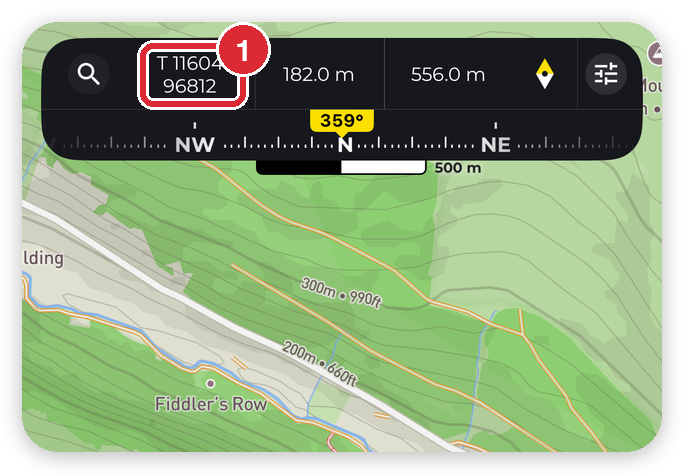
- On any map, find the map information bar across the top of the screen.
- Tap the Coordinates value. It’s the first slot unless you’ve changed it.
- The Compass screen opens over the map. To go back, tap the back arrow at the top left, or tap the map area around the dial. On Android, the Back button works too.

You can also get here from the mini compass: tap the strip under the bar and choose Show full compass.
The Coordinates slot only appears if one of your three slots is set to it. If you’ve swapped it out, add it back from the settings icon on the bar (see Map information bar), or use Show full compass instead.
Read the dial
Hold your phone flat in front of you, top edge pointing the way you’re facing.
- The heading above the dial shows which way your phone points, in degrees and as one of eight compass points, for example 242° SW. It reads — until the compass has a reading (or if your phone has no compass).
- The dial turns as you turn, so N (in yellow) always points to north. The needle and the small yellow triangle at the top stay fixed: they show the way you’re facing.
- The yellow arc runs round the ring from the triangle to N, showing how far you’re turned from north. With a target set, it runs to the target instead (see below).
- The dial shows true north, the north on your map, rather than magnetic north. A brief tap on the dial won’t close the screen, so you can steady it with your thumb.
Your location and its accuracy
The card at the bottom describes one point:
- My location when HiiKER has a GPS fix. This is where you’re standing, not the crosshair in the middle of the map.
- Map centre when it doesn’t yet, for example if location access is off. The card then describes the crosshair, and switches to My location as soon as a fix arrives.
Under the title is the nearest place name, such as Brockagh, Co. Wicklow. It needs a data connection to look up, so it may be missing offline; your coordinates still work without it.
Next to My location, a pill with a green dot shows your GPS accuracy, for example ± 5 m (or ± 16 ft with imperial units). If it reads ± 10 m, you’re probably within 10 metres of the position shown. Give it a moment in the open and the number usually drops. There’s no pill for Map centre, because the crosshair is exact.
Copy a coordinate
Your position is written out in several formats at once, so you can read off whichever one your map, guidebook or rescue team uses:
- DD: decimal latitude and longitude to six decimal places, for example 53.010700, -6.329700. This is the format to paste into another app or a rescue form.
- DMS: the same position in degrees, minutes and seconds.
- UTM: zone, easting and northing, for example 29U 679142 5876796. Shown everywhere between 80°S and 84°N.
- Your national grid, only if you’ve chosen one as your coordinate system: OSGB (Great Britain Grid Reference), Irish Grid or NZMG (New Zealand Grid Reference).
The national grid row also needs you to be inside that grid’s area. Pick Irish Grid Reference and walk in the Alps, for example, and the row simply isn’t there, because an Irish grid reference for Switzerland means nothing. DD, DMS and UTM are always shown. To change your coordinate system, see Understanding map coordinate systems in HiiKER.
To copy one, tap its row (the word Copy sits at the end of each). Only the value is copied, ready to paste into a message.
On iPhone
A message shows exactly what was copied, for example “T 12160 96825 has been copied to clipboard”, and your phone gives a light tap. Grid row names are in capitals: OSGB, IRISH GRID, NZMG.
On Android
A green message reads “Coordinates copied to clipboard”, whichever row you tapped (what3words included). The Irish row is labelled Irish Grid.

The what3words row
what3words gives every 3 m square on Earth a unique three-word address, such as ///booth.gallons.bricks. Many emergency services accept one. The row is labelled w3w and sits at the end of the list.
A 3 m square is tiny, so HiiKER is careful only to show words that really describe where you are. That’s why the row sometimes shows a status instead of words:
- ///three.word.address with Copy: your words. Tap to copy them.
- Locating…: HiiKER is waiting for a GPS fix accurate to 20 m or better, or the words are on their way. Stand still in the open for a moment.
- Tap to refresh: you’ve moved more than about 5 m since the words were looked up, so they no longer name your square. Tap the row to look up new ones. If you walk back into a square HiiKER already looked up, the words come back by themselves.
- Unavailable offline: the lookup failed, usually because you have no signal. Tap the row to try again once you have a connection.
A few limits to know about:
- It needs your GPS position and a data connection. The row doesn’t appear at all for Map centre, because the words must name where you are standing.
- Up to 5 lookups each time you open the screen. HiiKER looks up your words once automatically; each tap on Tap to refresh or Unavailable offline uses another. After five, the row greys out and stops responding. Close the Compass screen and open it again to get five more.
- Sometimes it disappears for a while. If what3words can’t take any more requests from HiiKER, the row is hidden until you next restart the app. Your other coordinates are unaffected.
Walk on a bearing to a target
Pick a point on the map, such as a summit cairn, a bothy or the car park, and the Compass screen tells you which way to turn to face it.
- On the map, press and hold the spot you want to reach. A pin drops and a sheet opens.
- Tap Set compass bearing. (The mini compass switches on by itself if it was hidden.)
- Tap your coordinates in the bar to open the Compass screen.
- Turn until the cue above the dial reads On course, then walk.
You can also set a target from a POI, waypoint or hike highlight: open it and tap Bearing.

With a target set, the Compass screen adds:
- A red pin on the dial marking the target’s direction, with the yellow arc running from the top triangle to the pin: the turn you still need to make.
- A turn cue under the heading: Turn 18° right, Turn 40° left, or On course in green once you’re within 5° either side. As you come on course, the triangle turns green and your phone gives a light tap. It won’t buzz again until you’ve drifted more than 8° off, so a wobbly hand doesn’t set it off repeatedly.
- A target row in the card with the bearing and straight-line distance from you, for example Target 242° SW · 10.3 km, and Clear on the right to remove it.

The bearing and distance are measured from your GPS position (or the map centre, if there’s no fix yet) and update as you walk. The distance is as the crow flies, not along the path. Setting a new target replaces the old one.
To remove a target, tap Clear on the Compass screen. Hiding the mini compass (tap it, then Hide mini compass) also clears it, and targets don’t survive closing HiiKER.
Share your location
- Tap the yellow Share location button at the bottom of the screen.
- Choose an app (Messages, WhatsApp, email and so on) and send.
The message is plain text, one item per line, so it reads well even on a basic phone or a weak connection:
- My location (or Map centre) and the place name, if there is one
- every coordinate row on screen: DD, DMS, UTM and your national grid
- your what3words address, but only while it’s current (never Tap to refresh words, which could point to the wrong square)
- your target, if one is set, for example Bearing to target: 242° SW, 10.3 km
- a map link, such as https://maps.google.com/?q=53.010700,-6.329700, which opens in Google Maps, Apple Maps or any browser
In an emergency, call the rescue services first, then send your location. See Emergency services and Mountain Rescue for the numbers to call.
The “tap your coordinates” hint
To help you find the Compass screen, HiiKER shows a one-off tip under the bar, with a pulsing yellow ring around your coordinates: New: tap your coordinates, “See a live compass, grid references, what3words and share your location.”
- Tap Show me to open the Compass screen.
- Tap Got it, or anywhere else, to dismiss it. On Android, Back dismisses it too.
It appears only once. If you’ve used HiiKER before, you’ll see it the first time you open a map after updating; on a new install it waits until you’ve opened a map a few times (eight map views). It never appears on top of another sheet, while the touch screen is locked, or if Coordinates isn’t on your bar, and if you tap your coordinates before it shows, it won’t show at all.
Good to know
- The bar and the Compass screen describe different points. The Coordinates slot on the bar shows the crosshair in the middle of the map; the Compass screen shows where you are. Want the crosshair’s coordinates? Pan the map so it sits on the spot and read the bar, or press and hold the map there.
- Works offline. The dial, your GPS position, DD, DMS, UTM, your national grid and the bearing to a target all work with no signal. Only the place name and what3words need a connection.
- Keep the compass calibrated. Hold the phone flat and away from metal, magnets and other electronics. If the heading seems off, move the phone in a figure of eight a few times.
- The map bar hides while the screen is open and comes back when you close it. GPS and the compass stop when you close it, so leaving it open is the only extra battery cost.
Quick reference
- Open: tap Coordinates on the map information bar, or tap the mini compass > Show full compass
- Close: back arrow at the top left, or tap the map around the dial
- Copy a coordinate: tap its row (DD, DMS, UTM, your national grid or w3w)
- National grid row: only with OSGB, Irish Grid or NZMG chosen, and only inside that grid’s area
- what3words: GPS fix within 20 m and a connection; up to 5 lookups per visit
- Set a target: press and hold the map > Set compass bearing, or Bearing on a POI, waypoint or highlight
- On course: within 5° of the target; Clear removes it
- Share: Share location sends your coordinates, current what3words, any target and a map link
More about the bar at the top of the map: Map information bar and How do I use the HiiKER mini compass? To choose a grid reference, see Understanding map coordinate systems in HiiKER. Heading somewhere remote? Read Emergency services and Mountain Rescue.
