

Tap any list on My Peaks to open it. You can also find one from the app’s Search, on the Peak Lists tab.
In this article: At the top · Your progress · Leaderboard · Hike recommendations · The peaks themselves
At the top
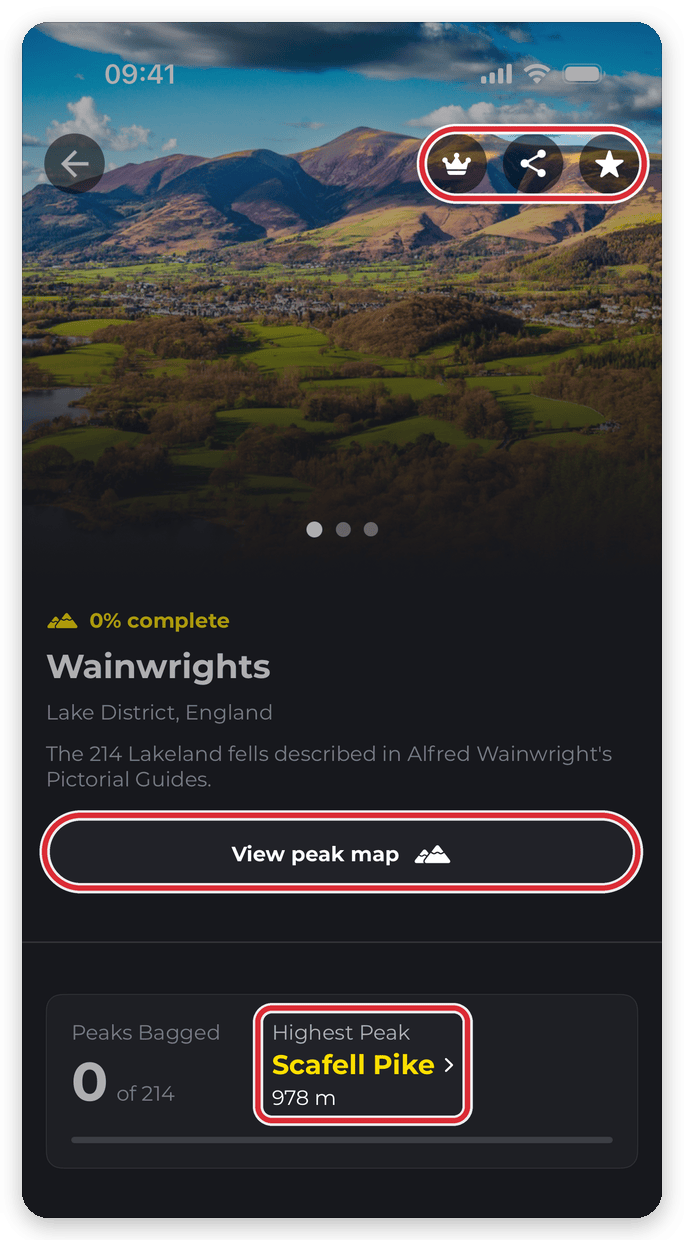
The list’s photos, with three buttons over them: the crown opens the list’s leaderboard, the share button sends a link to the list, and the star adds it to My peak lists. Below the photos: how far through the list you are (for example 12% complete), its name and area, and a short description.
View peak map opens every summit on the list on a map, filterable by what you’ve done and what’s left.
Your progress
Peaks Bagged shows how many you’ve bagged out of the total. Highest Peak names the list’s highest summit — tap it to see the peak in 3D, with its details.
Leaderboard
The top three on the list’s leaderboard over the last 60 days, and where you stand. Tap View leaderboard for the whole board, or tap a walker to see their profile.

Hike recommendations
Routes chosen to move you through this list, each labelled with why it’s there:
- Bags the most — the route that takes in the most peaks on the list you haven’t bagged yet.
- Highest summit — takes in the highest peak on the list you haven’t bagged yet.
- Closest to you
- Easiest on the list
- Best rated on the list
- Shortest walk
- Least climbing
Every card is a different hike — you won’t get the same walk twice under different labels. Not every label appears on every list, and See more shows the rest of the cards. Tap a card to open the hike.

The peaks themselves
Below that, every summit on the list. Bagged ones are ticked, show the date you got them and are listed first. Use Sort to order them by Elevation, Alphabetical or Still to climb instead, or tap the magnifying glass to search. Tap any peak to see it in 3D, with its details.

Related: Using the My Peaks screen · Peak bagging leaderboards
