


Peak Viewer uses your phone’s camera to name the peaks around you. Point your phone at the horizon and every summit in view is labelled with its name and height.
In this article: What it does · Requirements · Where to find it · How to use it · Additional options · Labels not lining up?
What it does
- Labels the peaks you can see through your camera with their names and heights.
- Finds the skyline in the camera picture and lines the labels up with it (Auto-align horizon).
- Opens the full details for any peak when you tap its label.
- Shows the same peaks on a 3D terrain map, so you can explore a range without standing in front of it.
- Lets you capture the view, labels included, and share it.
Requirements
- Minimum app versions. iOS: 26.101, Android: 26.10.2
- A HiiKER PRO+ subscription. Without one, the Name every peak you can see card’s Try it out button gives you one free look. Capturing the view needs PRO+, even during the free look.
- Camera, location and compass access.
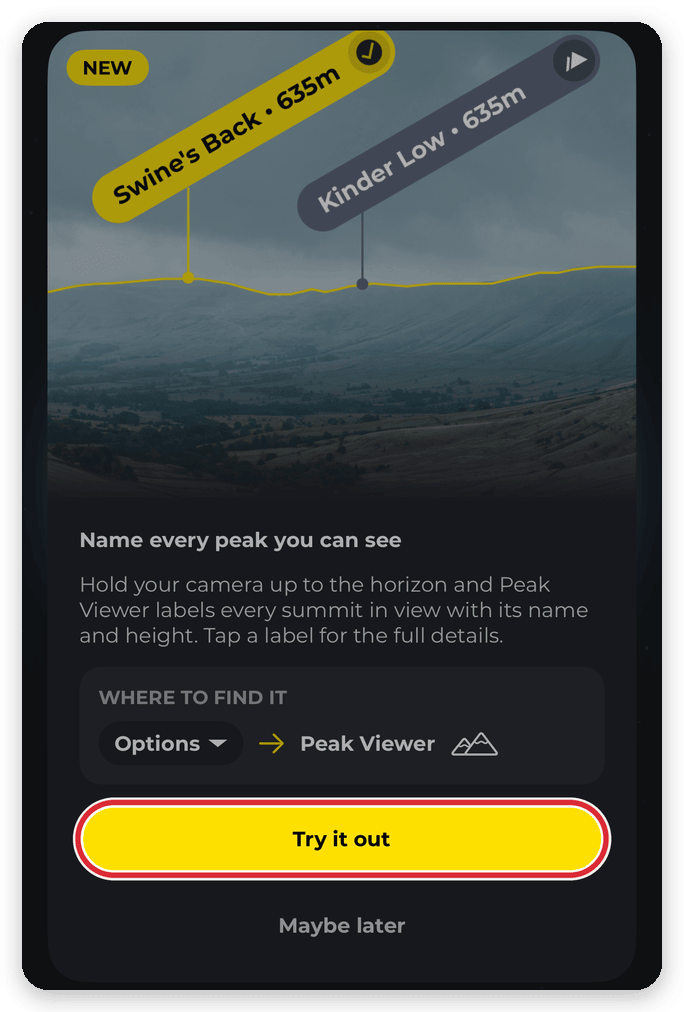
Where to find it
- Open any map in the app that has an Options button.
- Tap Options.
- Under Tools, tap Peak Viewer.


You can also add Peak Viewer to a quick action button on the map (Open Peak Viewer) for one-tap access.
How to use it
- Hold your phone up and point the camera at the horizon.
- Wait a moment while HiiKER finds the peaks near you.
- Pan slowly along the skyline. Labels appear over each summit, and Auto-align horizon locks them onto the hills.
- Tap a label to see that peak’s details.
Additional options
- Range: Use the slider to choose how far to look for peaks, from 5 km to 60 km. The default is 30 km on iPhone and 60 km on Android. Peak Viewer remembers your choice.
- Show horizon (in Options): Show or hide the outline of the skyline.
- Show peaks (in Options): Turn the peak labels on or off.
- Auto-align horizon (in Options): On by default. Lines the horizon up with the hills for you. Turn it off if you’d rather drag it into place yourself.
- Reset Horizon (in Options): Clears any adjustments you’ve made.
- Peak map: Tap the map button to see the same peaks on 3D terrain, and tilt around a range to read the summits off the relief.
- Zoom: Pinch with two fingers to zoom in on distant peaks.
- Capture: Save and share a photo of the view with the peak labels.


Labels not lining up with the mountains?
Sometimes the labels and horizon line sit a little to the side of, or above or below, the real mountains. Auto-align horizon fixes most of this on its own, and the rest only takes a few seconds.
Why it happens
Peak Viewer works out what’s in front of you from your location, the direction your phone is pointing and a 3D map of the terrain. With Auto-align horizon on, it also looks for the skyline in the camera picture and pulls the horizon onto it. If the sensors are off, or the skyline is hard to see, the labels can be off too.
- The compass is off or misaligned. Phone compasses are easily thrown by nearby metal, such as a car, a fence, trekking poles, a magnetic phone case or a mount. Even a few degrees out moves the labels sideways. Sitting in your car is a common way to trigger a misalignment.
Note: Move your phone in a slow figure-of-eight to recalibrate the compass. - The phone’s tilt sensor is off. This can make the horizon line sit too high or too low.
- Your location is rough. In a deep valley, a forest or right after you open the app, GPS can be less accurate. This matters most for nearby peaks.
- You can’t see the real skyline. Cloud, mist, haze or low light can hide the summits. Peak Viewer still labels the peaks behind the cloud, but there’s nothing to compare them with, so they can look like they’re floating in the sky — and Auto-align horizon has nothing to lock onto.
- A closer hill is in the way. A nearby ridge or trees can block the bigger peaks behind them.
How to fix it: drag to line it up
You can move the labels by hand so they match the mountains you can see.
- Make sure Show horizon is on (in Options), so you have a clear outline to match.
- Pick a peak or ridge you can see clearly.
- Place one finger on the screen and drag. Drag left or right to move the labels sideways. Drag up or down to raise or lower the horizon.
- Let go when the horizon line sits on the real skyline. All the labels move together, so once one peak lines up, the rest follow.
With Auto-align horizon on, Peak Viewer keeps checking the skyline after you let go, and may nudge the horizon again. If you’d rather it stayed exactly where you put it, turn Auto-align horizon off in Options.
Your adjustments last until you close Peak Viewer. Each time you open it, it starts again from the compass and tilt sensors.
Starting again
- Tap Options, then Reset Horizon, to clear your adjustments. Double-tapping the screen does the same.
- Tap the compass at the top of the screen to go back to true north. This clears the sideways adjustment only.
Other tips
- Keep Auto-align horizon switched on (it’s on by default) for the best chance of the labels locking onto the hills.
- Step away from cars, fences and other metal, and take your phone out of any magnetic case or mount.
- If the app says compass accuracy is low, move your phone in a slow figure-of-eight to recalibrate the compass.
- Wait a few seconds after opening Peak Viewer so your location can settle.
- Hold your phone upright and level.
- In cloud or poor light, line up on any landmark you can see. The other labels will still be in the right place relative to it.
- If no peaks show up, try increasing the range.
Related: What is Peak Viewer, and how is it different from 3D maps? · How to assign a Quick action on HiiKER
