

Yes. On iPhone, Apple CarPlay support is built into the HiiKER app itself — there’s nothing extra to install. On Android, Android Auto is provided by DRiiVER, a free companion app built by the HiiKER team: install it, sign in with your existing HiiKER account, and connect your phone to your car.
Installing on Android
Step 1: Install DRiiVER and sign in
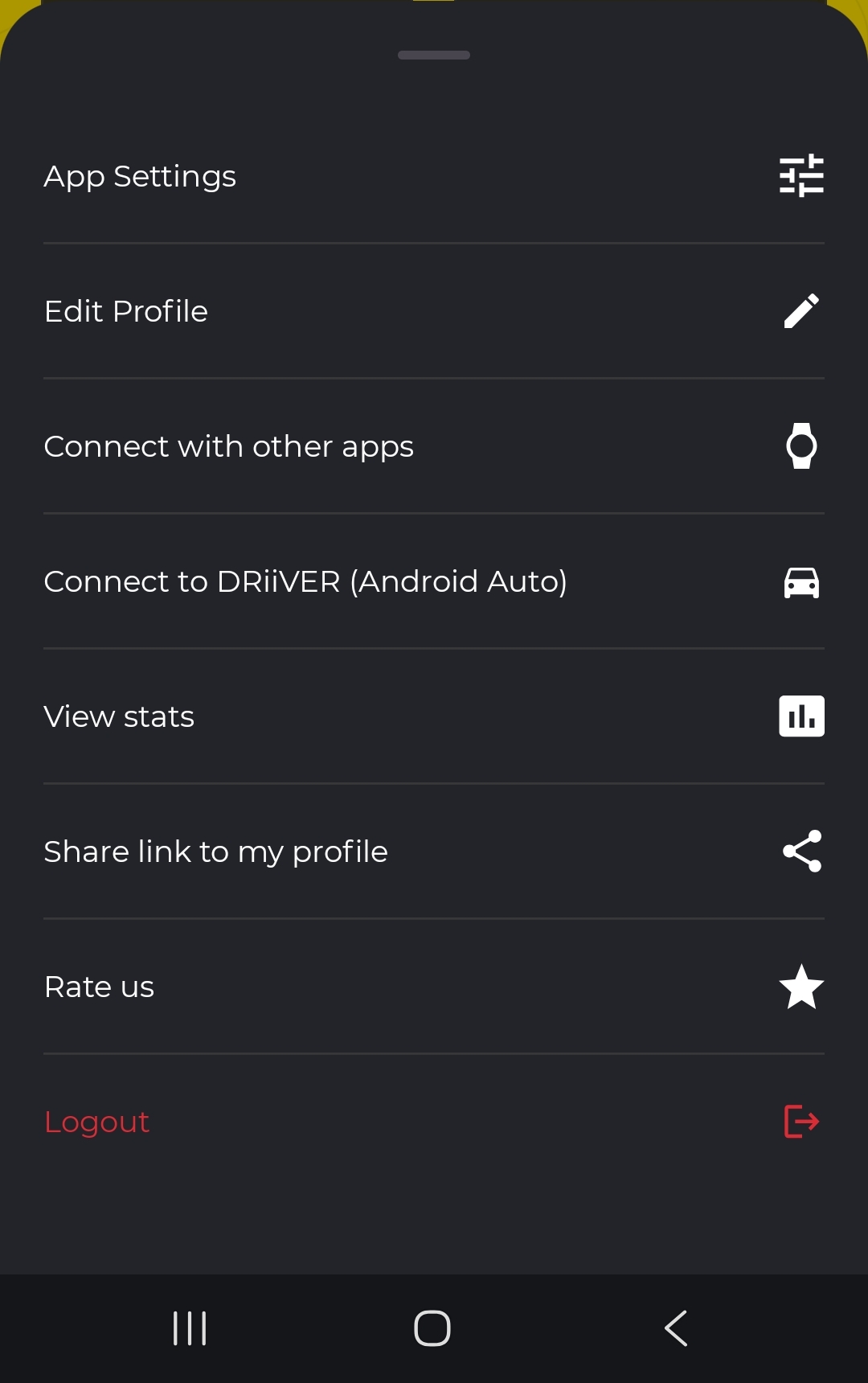
- In the HiiKER app, tap the settings icon on the Home tab, then Connect to DRiiVER (Android Auto). (Or go straight to Google Play.)
- Tap Get the DRiiVER App and install it.
- Open DRiiVER on your phone and log in with your HiiKER account — it’s the same account across both apps.

Step 2: Connect your phone to your car
DRiiVER runs on your car’s display through Android Auto, so your phone needs to be connected to the car first.
- Start the car and make sure it’s parked.
- Wired: plug your phone into the car’s USB port with a good-quality USB data cable (charge-only cables won’t work).
Wireless: if your car supports wireless Android Auto, pair the phone over Bluetooth and it will connect automatically after that. - The first time, accept the Android Auto prompts on your phone and allow the permissions it asks for.
- On the car’s display, open the app launcher and tap DRiiVER — it appears alongside Maps and your other car apps.
If you haven’t signed in on your phone yet, the car shows a sign-in prompt. Sign in on the phone and the car screen continues automatically — there’s no code to type into the car.

That’s it. You’ll land on the map, centred on your car.

Installing on iPhone / iOS
On iPhone there’s no separate app: CarPlay support is built into the HiiKER app itself.
Make sure you have the latest version of the HiiKER app, then connect your iPhone to Apple CarPlay. HiiKER shows up on your car’s screen as an option to use.
What you can do with DRiiVER in the car
- See HiiKER’s maps on your car’s screen, from detailed topographic maps to clear road maps. Tap the layers button to switch style — Standard, Satellite and Parks are free; Hiking, National and Historic maps come with PRO+.
- Drive to your saved waypoints — they appear as markers on the map and in search. Tap one to route straight to it.
- Route straight to the trailhead of hikes from HiiKER, so you spend less time finding parking.
- Drive to any destination — towns, car parks, attractions, and points of interest.
- The map follows you as you drive, and turns to face your direction of travel during navigation.


DRiiVER isn’t showing up in my car
- Check that DRiiVER is installed on your phone and that you’ve opened it and signed in at least once.
- Check that Android Auto itself is working — if Maps doesn’t appear on the car screen either, the problem is the phone-to-car connection rather than DRiiVER.
- Try a different USB cable. A surprising number of cables charge but don’t carry data.
- Make sure Android Auto and DRiiVER are both up to date, then unplug and reconnect.
- Look in the car’s app launcher rather than the home screen — some cars don’t surface every app on the first page.
Does the main HiiKER app run on Android Auto?
No — Android Auto support lives in the separate DRiiVER app rather than the main HiiKER app. This keeps HiiKER focused on the trail and makes the in-car experience purpose-built for driving. Because both apps share your HiiKER account, the hikes and waypoints you save in HiiKER are ready to navigate to in DRiiVER.
