

A free HiiKER account keeps your hikes, recordings and settings safe and in sync between your phone and hiiker.app. You can sign up with Apple, Google or your email address.
In this article: Sign up in the app · Sign up on the website · What an account lets you do · Change your email or password
Sign up in the app
- Open the HiiKER app. On the welcome screen, under New to HiiKER?, tap Create an account (on iPhone: CREATE AN ACCOUNT).
- On iPhone, you first choose a profile picture: pick one of the illustrated avatars (or Add Image) and tap NEXT.
- Choose Sign up with Apple, Sign up with Google or Sign up with Email.
- Follow the short set-up steps: add your name, pick a username, choose your country, and set a few preferences.
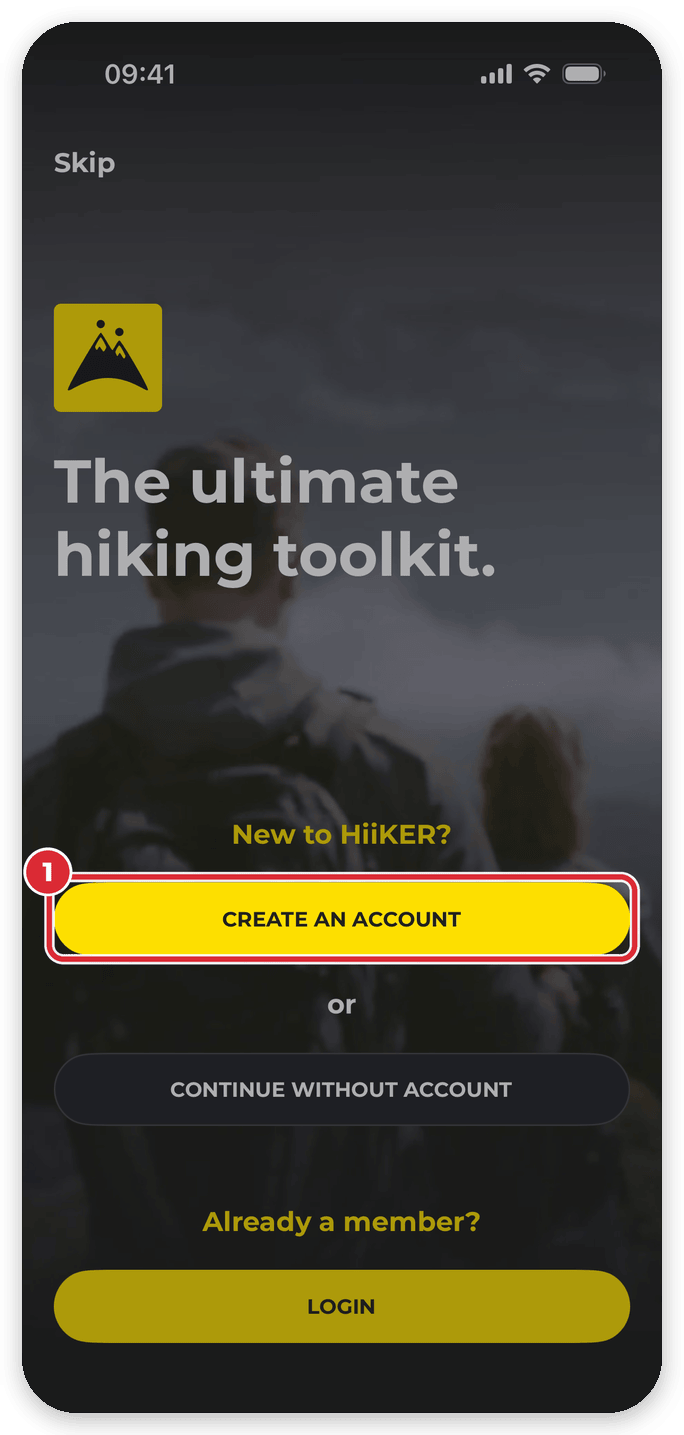

Want to look around first? Tap Continue without an account (on iPhone: CONTINUE WITHOUT ACCOUNT). You can explore the app and the map, and HiiKER will ask you to sign up when you use something that needs an account, such as planning a hike.
Already have an account? Tap Log in (on iPhone: LOGIN) under Already a member?.
Sign up on the website
- Go to hiiker.app and click Login at the top right.
- Switch to the Sign up tab.
- Choose Continue with Google, Continue with Apple or Sign up with email, and follow the steps.
It’s the same account everywhere: log in to the app with the same Apple, Google or email sign-in and your hikes, lists and recordings are there too.
What an account lets you do
- Save hikes to lists
- Mark hikes as complete
- Plan your own custom routes
- Save your recorded hikes
- Keep your hikes, recordings and settings in sync between the app and hiiker.app
Once you’re signed in, add a profile picture and a few details about yourself — see Edit your profile information on HiiKER.
Change your email or password
Email address: you can change it yourself, in the app or on the website.
- Go to the Home tab and tap the settings icon (the gear at the top right).
- Tap Edit profile (Android: Edit Profile), then tap the Email field.
- Enter your new address and tap Save and logout.
- Click the confirmation link we email to your new address, then log back in with your new email.
Saving logs you out, which also removes your offline downloads from the phone.
For the website steps and what to do if the email doesn’t arrive, see Changing your email address.
Password: to reset it, tap Forgot password? on the app’s log-in screen (Android: Forgot Password?), or use the website:
- Go to hiiker.app/password-reset.
- Enter your email address.
- Open the email we send you and follow the instructions.
Related: Changing your email address · Edit your profile information on HiiKER · How do I log out, or reset my password?
