

Your profile is what other hikers see: your profile picture, display name and country, plus any hikes and recordings you’ve made public. Here’s how to update it and control who can see it.
In this article: Edit your profile · Make your profile private · Make it public again · View another hiker’s profile · Change your email address · On the website
Edit your profile
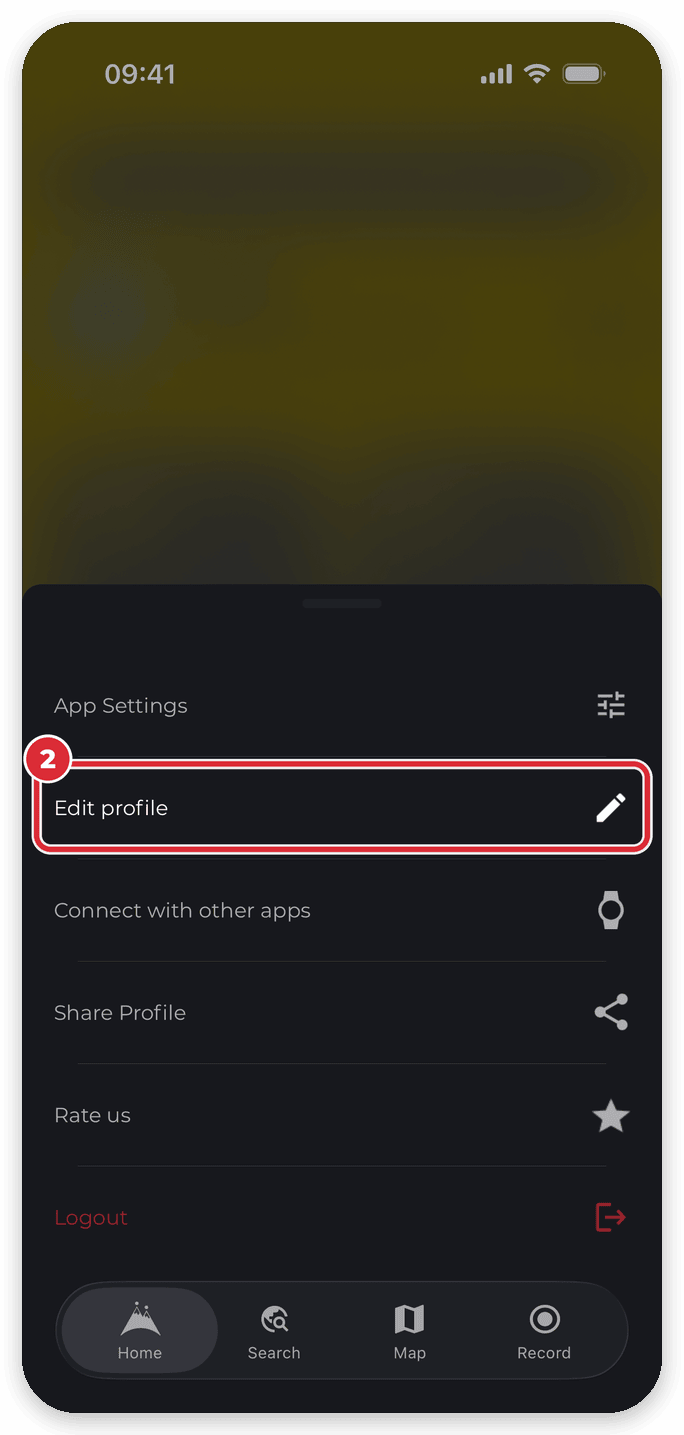
- Go to the Home tab and tap the settings icon (the gear at the top right).
- Tap Edit profile (Android: Edit Profile).
- Update any of these:
- Your profile picture — tap your photo (Android: Change Photo)
- Full Name
- Display Name — the name other hikers see
- Your country — Which country are you in? on iPhone, Location on Android
- Tap CONFIRM (Android: Save).


Make your profile private
A private account stops other hikers viewing your profile.
- Go to the Home tab and tap the settings icon.
- Tap App Settings, then Customize.
- Tap Account privacy settings (Android: Account Privacy Settings, at the bottom of the list).
- Turn on Set account to private.


A private account doesn’t hide hikes and recordings you’ve already made public and shared — anyone with the link can still open them. To make all of them private in one go, tap MAKE ALL MY ACTIVITIES PRIVATE (Android: Make all my activities private) on the same screen and confirm. This can’t be reversed in one step: to make something public again you’ll need to change its privacy setting individually.
Make your profile public again
- Go to the Home tab and tap the settings icon.
- Tap App Settings > Customize > Account privacy settings (Android: Account Privacy Settings).
- Turn off Set account to private.
View another hiker’s profile
Tap a hiker’s name or profile picture to open their profile — for example on a hike or recording they’ve shared, on a review or comment, or on a peak leaderboard. If their account is private, you won’t see their activities.
- To see your own profile the way other hikers see it, tap your profile picture on the Home tab.
- To send someone a link to your profile, tap the settings icon on the Home tab, then Share Profile (Android: Share link to my profile).
Change your email address
- Go to the Home tab, tap the settings icon, then Edit profile (Android: Edit Profile).
- Tap the Email field. The Update email screen opens.
- Enter your new address and tap Save and logout.
- Click the confirmation link we email to your new address, then log back in with your new email and your existing password.
Saving logs you out, and logging out removes your offline downloads from the phone, so you’ll need to download them again afterwards.
You can also do this on the website. See Changing your email address for both sets of steps.
On the website
- On hiiker.app, open My Account Settings from your profile sidebar, or go to hiiker.app/user/settings.
- In Profile, update your profile picture (Change photo), Full name and Username.
- Under Privacy, turn Make my account private on or off.
- There’s no need to press a save button: each change saves on its own, and you’ll see Saved once it’s stored.
More on the website settings page: Account settings on the HiiKER website.
Good to know
- Your profile is saved to your HiiKER account, so changes you make in the app show on the website too, and the other way round.
- The website calls your display name Username.
Related: Changing your email address · Your public profile and privacy on HiiKER · How can I make all my hikes and recordings private?
