

Everyone uses HiiKER a little differently, so you can change how the app looks and works — from the language and units to your walking pace and the icon that marks your position. Almost everything is in one menu: Customize.
In this article: Open the Customize menu · What you can change · Coordinate system on Android · Common changes · Good to know
Open the Customize menu
The steps are the same on iPhone and Android:
- On the Home page, tap the settings (cog) icon at the top.
- Tap App Settings.
- Tap Customize.
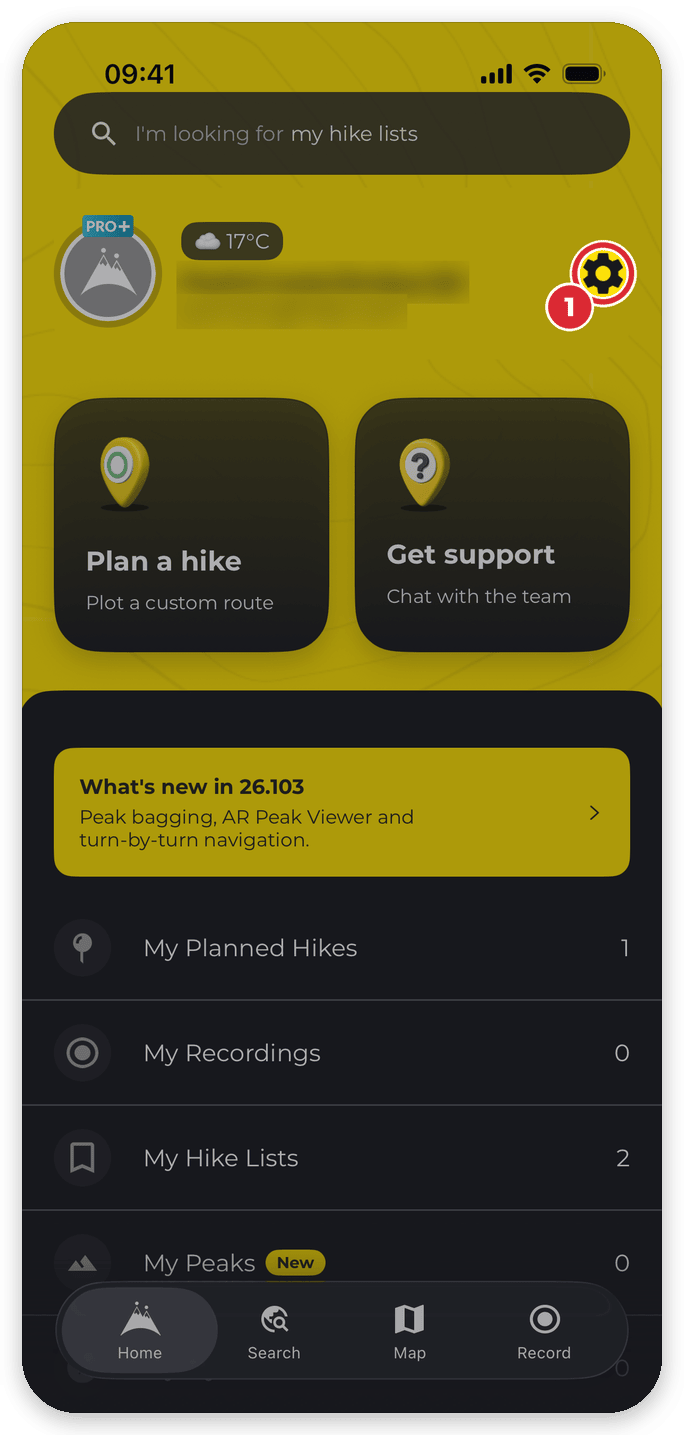


Shortcut: type the name of a setting — for example units, grid reference or hike time — into the search bar on the Home page, then tap the shortcut to jump straight to it.
What you can change
Here’s everything in the menu. Where Android names a row differently, its name is in brackets.
- Language — show the app in English, Deutsch, Nederlands, Français, Gaeilge, Italiano, Español or Português.
- Measurement Units — the units for distance and elevation across the app, such as Kilometers/Meters or Miles/Feet.
- Account privacy settings (Android: Account Privacy Settings) — make your profile private, or make all your activities private in one go.
- Coordinate Reference System (Grid Ref, etc..) — how coordinates are written: latitude and longitude (as decimal degrees or degrees, minutes and seconds), or a British, Irish or New Zealand grid reference. This row is on iPhone only — on Android you change it from the map (see below).
- Hike Time Setting — your walking pace and climbing rate, which every estimated hike time is based on. See Hike time settings explained.
- Estimated hike time — whether multi-day hikes are shown in hike days or in hours and minutes. On iPhone it’s at the bottom of the Hike Time Setting screen; on Android it’s a row of its own.
- Temperature Setting — Celsius, Fahrenheit or Kelvin.
- Offline Map Bounds (Android: Offline map bounds) — hide the dashed orange outline that marks the areas you’ve downloaded for offline use.
- Font Size Setting (Android: Font Size) — make the app’s text smaller or larger.
- Off route warnings (Android: Off route warning) — turn off-route warnings on or off and set how sensitive they are. See Off-route warnings.
- Map orientation (Android: Map Orientation) — lock the map so north is always at the top.
- Customize location icon (Android: Map location icon) — the style and size of the icon that marks your position on the map.
- Peak celebrations — turn the full-screen celebration you see when you reach a summit on or off. See Turn the peak bagged celebration on or off.


Coordinate system on Android
Android’s Customize menu doesn’t include the coordinate system. Change it from the map instead:
- Open the Map tab.
- Tap the settings icon (three sliders) at the right-hand end of the map information bar, at the top of the map.
- On the Customize Map Information Bar screen, tap the box under Map Coordinate System and choose a format — for example Great Britain Grid Reference. The change applies straight away.


Or type grid reference into the search bar on the Home page and tap Coordinate Reference System. The same Map coordinate system option is in the map information bar settings on iPhone too. For what each format means, see Understanding map coordinate systems in HiiKER.
Common changes
How do I change the language?
Open Customize > Language and choose a language.
How do I switch between miles and kilometres?
Open Customize > Measurement Units. Choose Miles/Feet for imperial units or Kilometers/Meters for metric — or a mix, such as Miles/Meters or Kilometers/Feet.
How do I set my account to private?
Open Customize > Account privacy settings and switch on Set account to private. Other hikers can no longer view your profile, but hikes and recordings you’ve already made public and shared can still be opened. To make those private too, tap Make all my activities private on the same screen. See Your public profile and privacy on HiiKER.
How do I use British grid references?
On iPhone, open Customize > Coordinate Reference System (Grid Ref, etc..) and choose Great Britain Grid Reference. On Android, choose it in the map information bar settings — see Coordinate system on Android. Irish and New Zealand grid references work the same way.
How do I make the text bigger?
Open Customize > Font Size Setting (Android: Font Size) and pick a larger size — Plus 1 or Plus 2 on iPhone, Large or Largest on Android.
How do I lock the map to north?
Open Customize > Map orientation (Android: Map Orientation) and switch on Lock map to north.
How do I change my location icon?
Open Customize > Customize location icon (Android: Map location icon). Pick an icon style and a size, or tap Reset to default to go back to the standard icon.
How do I show hike times in hours and minutes?
Set Estimated hike time to Show in hours & minutes (Android: Show in hours / Minutes). More in Hike time settings explained.
Good to know
- Your measurement units and hike time settings are saved to your HiiKER account, so they follow you to your other devices and to the website.
- Haven’t picked a coordinate system? HiiKER chooses one to suit your phone’s region: British grid in the UK, Irish grid in Ireland, New Zealand grid in New Zealand, and latitude and longitude everywhere else.
- On hiiker.app, units, grid reference, map orientation, hike time and privacy are under My Account Settings — see Account settings on the HiiKER website.
Related: Hike time settings explained · Change measurement units · Understanding map coordinate systems in HiiKER
