

GPX is the standard file format for hiking routes and GPS tracks. You can bring a GPX route into HiiKER to edit and follow it, and download any hike as a GPX file to use somewhere else.
In this article: Import a GPX route · Import several files at once · Export a hike as GPX · Why won’t my GPX file open?
How to import a GPX route into the HiiKER app
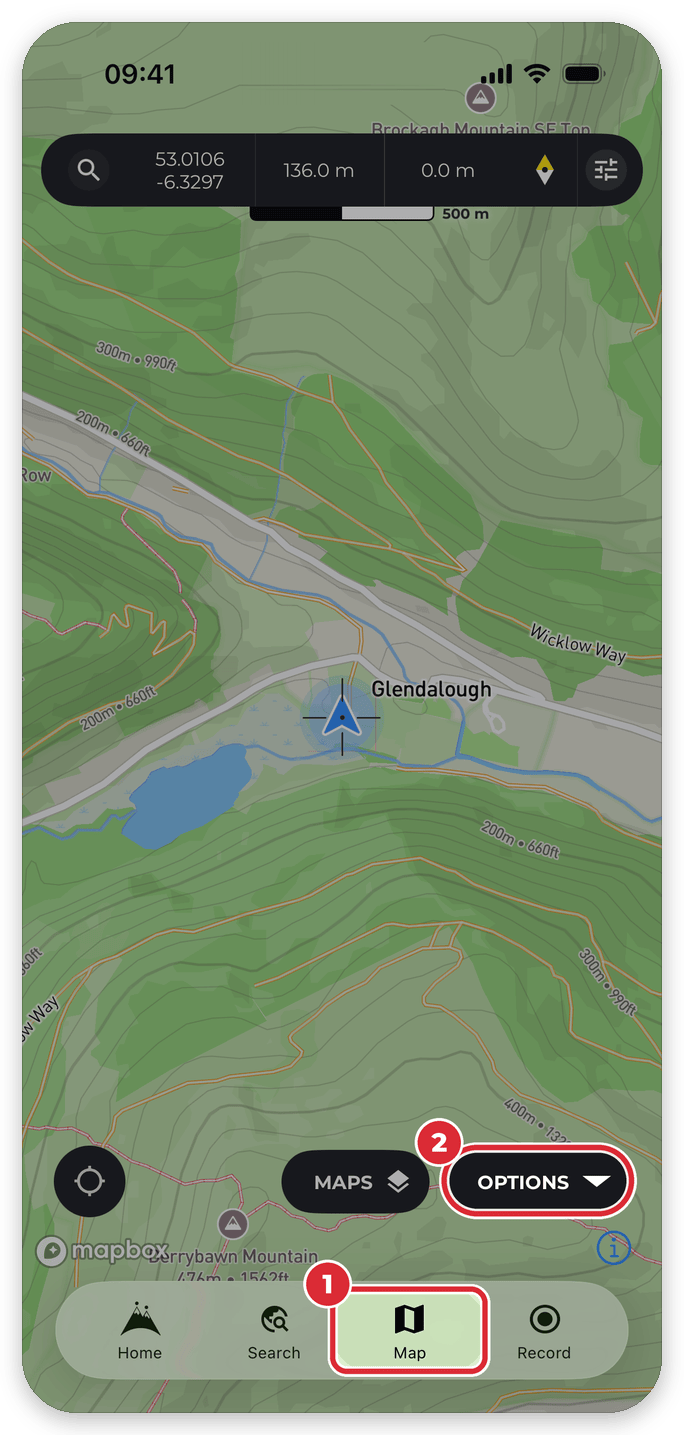
- Open the Map tab.
- Tap Options.
- Under Navigation, tap Import GPX.
- On iPhone, choose the file. On Android, tap import GPX at the top right of the Import screen, then choose the file.
- The route opens in the Hike Planner. Change it if you like, then tap Save to add it to your hikes.

- You need to be signed in to import a file.
- Shortcut: type import into the app’s search bar.
- Already in the planner? Tap Hike Days > Import hike > Import GPX. See Plan a hike.
How to import several GPX files at once
To bring in a batch of routes without opening each one in the planner:
- From the Home page, open My Planned Hikes.
- Tap + at the top right and choose Import hike.
- Tap Choose Files (on Android: Choose GPX files) and select one or more GPX files.
- Tap Import Files. Each file is saved as a new hike.


Got GPX tracks of walks you’ve already done? Import them as recordings instead: open My Recordings, tap + and choose Import recording.
How to export a hike as a GPX file
- Open the hike you want to export.
- On its overview page, tap More.
- Tap Export GPX, then choose GPX, GPX (Garmin Compatible), KML (Google Earth) or GeoJSON.
Step-by-step with pictures: Download a hike as a GPX file.
Why won’t my GPX file open?
If an import fails, the app tells you why. Here’s what each message means and what to do:
- “This isn’t a GPX file. Please choose a file that ends in .gpx.” The file needs to end in .gpx (route.gpx, not route.txt). Some apps and downloads save it with the wrong extension. If it’s really a KML, KMZ or FIT file, convert it to GPX first.
- “This GPX file is damaged or incomplete and couldn’t be read.” The download may have been interrupted, or the file was edited by hand or exported by a tool that doesn’t follow the GPX standard. Download or export it again.
- “This file is empty — there’s nothing to import.” The file has no content. Download it again.
- “This GPX file doesn’t contain a route or track to import.” It may only hold waypoints. Import those from Options > Waypoints > Import Waypoints GPX (on Android: Import GPX Waypoints).
- “This file has a route, not a recorded track. Import it as a hike instead.” You tried to import a planned route as a recording. Use one of the hike imports above.
- The file is very large. Files with many thousands of points can take a long time to process. On Android, files over 32 MB can’t be imported (“This file is too large to import. Please choose a GPX file under 32 MB.”).
On the HiiKER website? See Importing routes on the HiiKER website and Exporting and downloading routes from the HiiKER website.
