

You can download any hike as a GPX file, whether it’s a HiiKER hike or one you planned yourself, and use it in another app or on a GPS device. KML and GeoJSON files are available too.
In this article: In the app · On the website · Good to know
In the app (iPhone and Android)
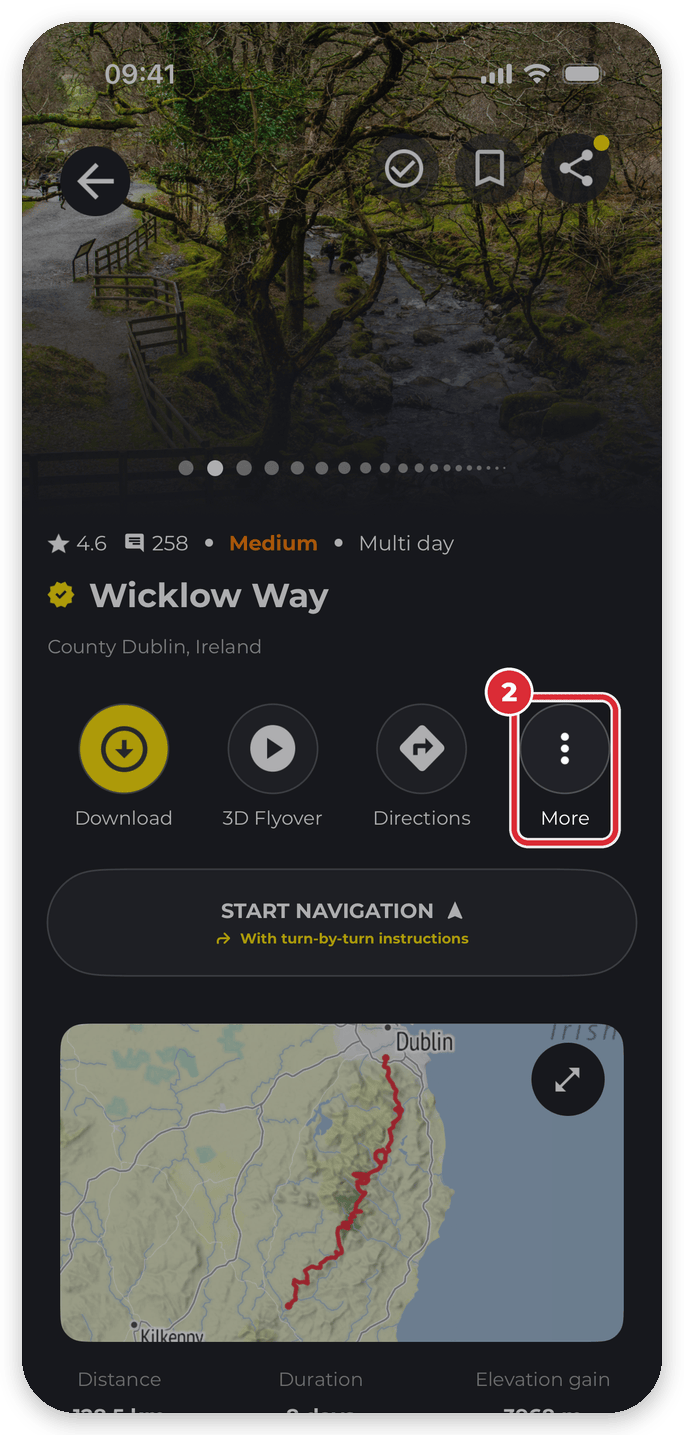
- Open the hike’s overview page.
- In the row of buttons under the hike’s name (Download, 3D Flyover, Directions, More), tap More.
- Tap Export GPX.
- If the hike has more than one route, for example a multi-day hike, choose the routes you want in the file.
- Under Choose a format, pick GPX, GPX (Garmin Compatible), KML (Google Earth) or GeoJSON.
- On iPhone, the share sheet opens: tap Save to Files, or send the file straight to another app. On Android, choose where to save the file and tap Save.

On the website
- Sign in at hiiker.app and open the hike’s page.
- Click Download and choose the Export File tab.
- Click the format you want. The file downloads to your computer.
More detail: Exporting and downloading routes from the HiiKER website.
Good to know
- The yellow Download button in the app saves the hike’s maps for offline use. It doesn’t create a file. See How do I download offline maps on HiiKER?
- Using a Garmin? GPX (Garmin Compatible) saves the hike as a single route, which Garmin devices handle best. Or skip the file and use More > Send to GPS (on Android: Send to GPS Device) to send it to your Garmin through Garmin Connect. See How to Sync HiiKER with Garmin Connect.
- Your recordings can be exported the same way, from the recording’s More menu, as GPX, KML or GeoJSON.
- Exporting a file doesn’t make your hike public, so it’s a good way to share a private route.
Related: GPX Files on HiiKER (importing GPX files) · How do I share a hike?
