

If you’ve bought PRO+ but it isn’t showing in the app, Restore Purchases checks your App Store or Google Play account for previous purchases and adds them back to your HiiKER account.
Restore your purchases in the app
First make sure you’re logged in to the HiiKER account you used when you subscribed. Then:
- Go to the Home tab and tap the settings icon (the gear at the top right).
- Tap App Settings > Purchases and Subscriptions (Android: Purchases).
- Tap Restore Purchases. It can take 30 seconds or more.
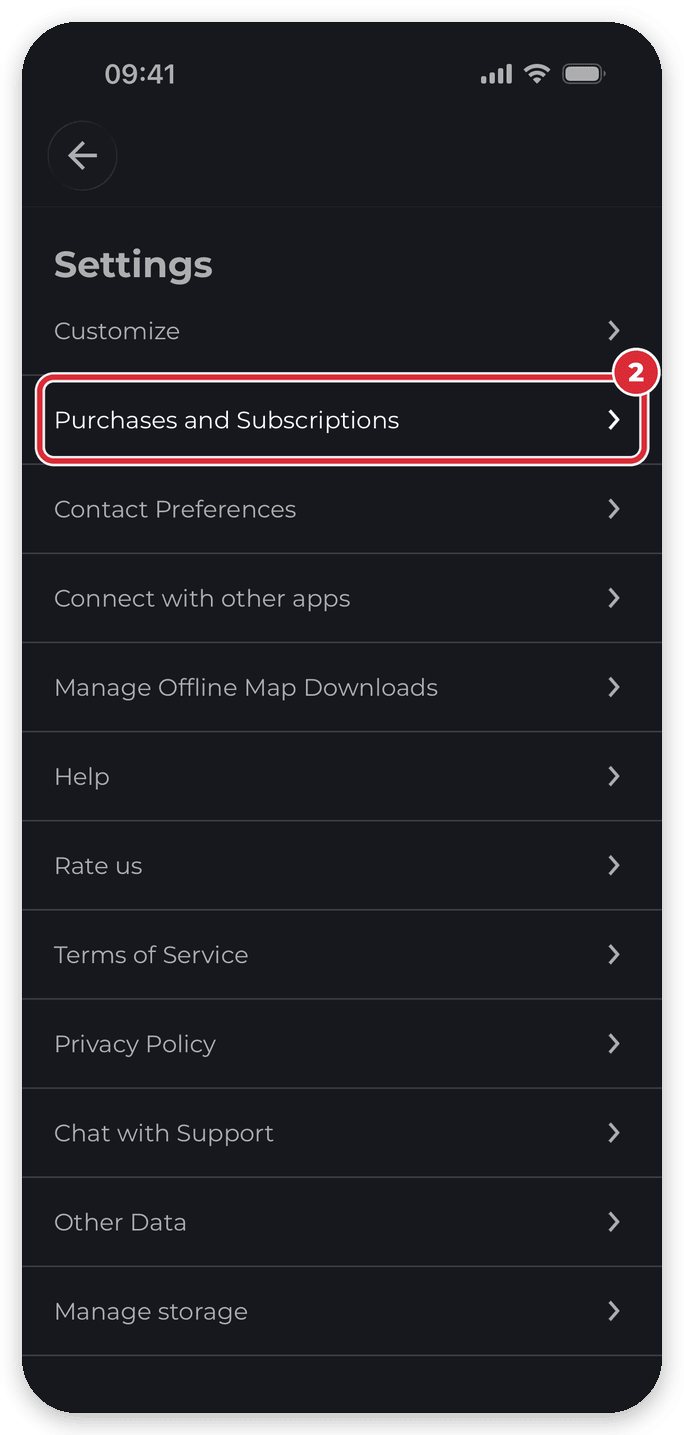

On Android the row reads Sync subscriptions from your Google account:

You’ll also find Restore Purchases at the bottom of the PRO+ upgrade screen.
Still can’t see your purchase?
- Check you’re logged in with the right email. Tap Can’t see your purchase? on the same screen — the first tip shows the email you’re logged in with. It needs to be the account you bought PRO+ with.
- Bought on an iPhone or iPad? Check the subscription is active in your iPhone Settings > your name > Subscriptions, and that you’re signed in with the Apple ID you bought it with.
- Bought on Android? Check it in the Google Play Store: tap your profile picture > Payments & subscriptions > Subscriptions, and make sure it’s the Google account you bought with.
- Bought on hiiker.app? Log in to the app with the same email address you used on the website. Your email is shown next to your profile picture on the Home tab. See I purchased a HiiKER subscription via the website but can’t access it in the app.
If you still can’t access your purchases, we’ll help you out: tap Get support on the Home tab to chat with us (or Chat with Support in App Settings; Android: Quick guides & support), or email [email protected].
Related: I paid for PRO+ but my premium features aren’t showing · Where do I find details on my HiiKER subscription? · Upgrading to PRO+
