

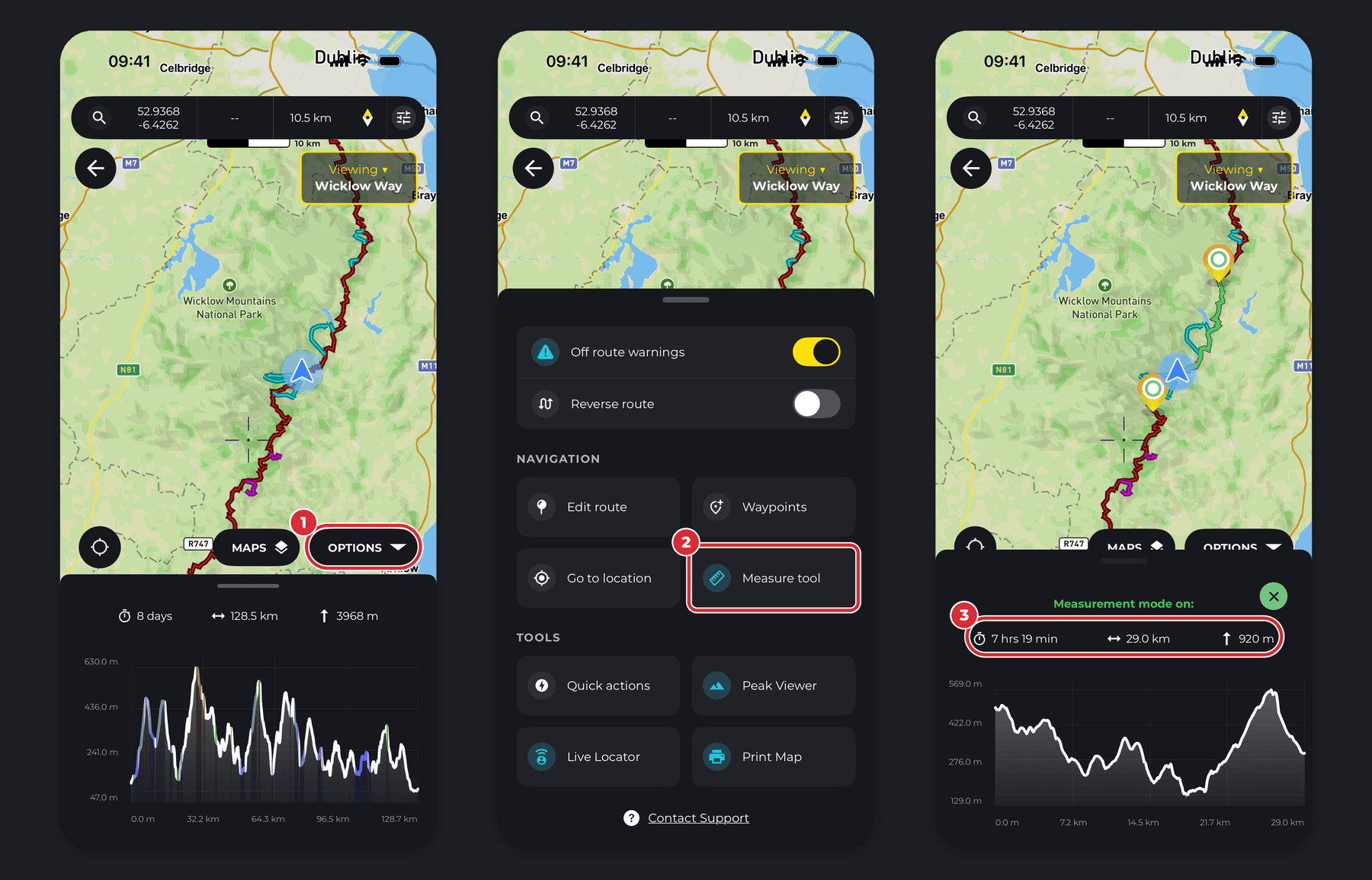
The Measure tool is a quick way to measure a section of a route — or the straight-line distance between two points — and see the distance, estimated walking time, elevation gain and an elevation profile. It’s part of PRO+.
In this article: Measure part of a hike · Measure without a route · How long between two points? · How long is left on my hike?
Measure part of a hike
- Open the hike’s map.
- Tap Options, then Measure tool in the Navigation section.
- Tap the route line where you want to start, then tap where you want to finish.
- The panel shows the estimated time, distance and elevation gain for that section, with its elevation profile.
- To move a point, press and hold it, then drag it along the route.
Measuring follows the route line, so the distance is the distance you’ll actually walk between the two points.
Measure without a route
- Open the Map tab.
- Tap Options, then Measure tool.
- Tap the map where you want to start, then where you want to finish.
With no route to follow, the Measure tool measures in a straight line between your two points — as the crow flies — and shows the height of the ground along that line.
How to see the time to hike between two points
Use the Measure tool as above. The results show the estimated walking time, distance and elevation gain for the section. Times are based on your own walking pace — see Hike time settings.
How can I see how long is left on my hike?
While you’re recording along a route, you can switch one of the stats on the recording screen to Distance Remaining or Time Remaining (Distance remaining and Est. Time remaining on Android).
Or use the Measure tool:
- While following a route, open Options > Measure tool.
- Tap the route near your current location.
- Tap the end of the hike.
- The panel shows the estimated walking time, distance and elevation gain left.
Related: Can I see how long until I reach the end of my hike? and How to use the main map.
