


Peak bagging keeps a record of every summit you reach while recording a hike, and tracks your progress on peak lists like the Munros, the Wainwrights, the Colorado Fourteeners and the Alpine 4000ers.
In this article: What it does · Where to find it · How to bag a peak · Finding a route to the summit · Additional options
What it does
- Bags a peak automatically when your recorded track passes over its summit.
- Fills in your progress on every peak list that summit belongs to.
- Celebrates each summit the moment you reach it, when you’re recording while following a hike.
- Lists the peaks on a hike, so you know what you’ll be summiting.
- Shows the peaks you bagged on recording overviews.
- Ranks you against other walkers on each list’s leaderboard.
Where to find it
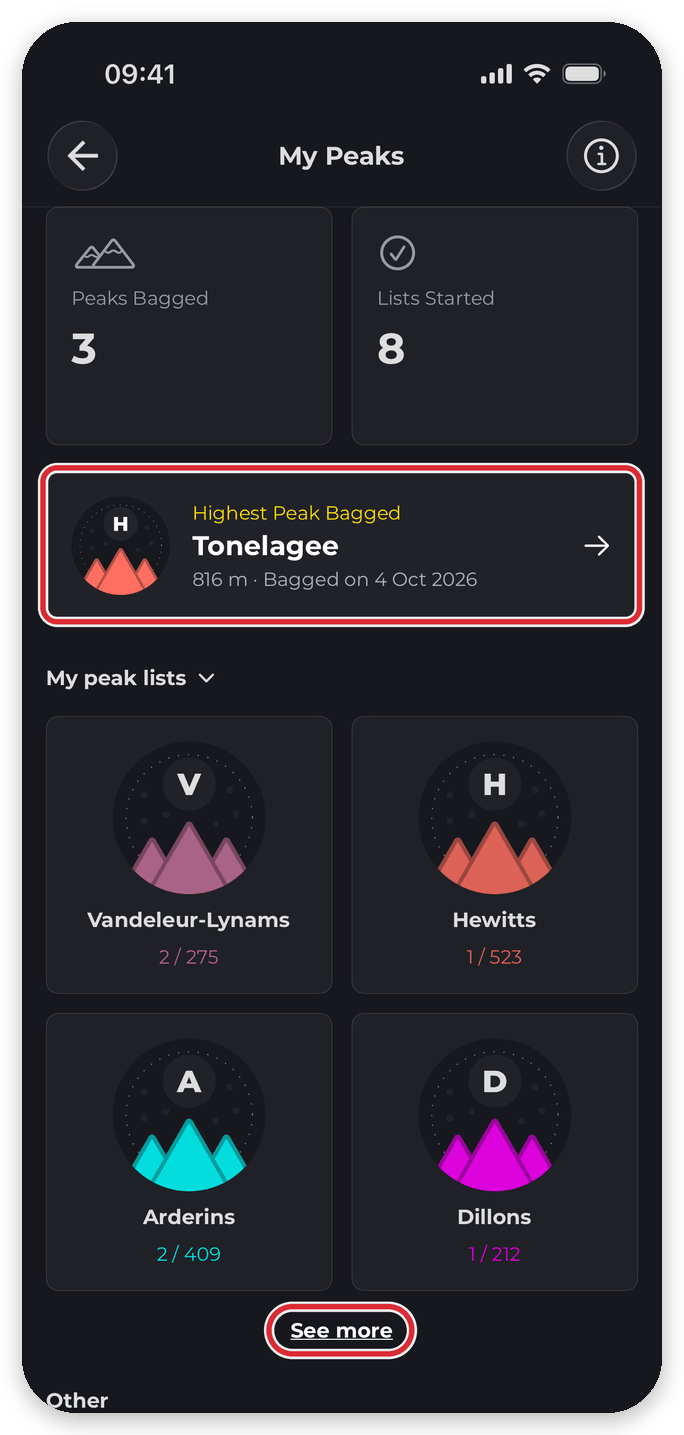
Open My Peaks from the home screen. It shows:
- Peaks Bagged: your total.
- Lists Started: how many lists you’ve bagged at least one peak on.
- Highest Peak Bagged: your highest summit.
- My peak lists: the lists you’ve starred or bagged a peak on, with your progress.
- Other: every other list you can start.
On the website, every list — with your progress when you’re signed in — is at hiiker.app/peaks.
How to bag a peak
- Press record before you set off. To have each summit celebrated as you reach it, record while following a hike: tap Start Navigation on the hike, or choose it as your guide from Record › More.
- Keep recording over the summit.
- Save the recording when you’re done.
The recording has to be running when you cross the summit. That’s the only way a peak counts. Summits on a hike you’re following are bagged the moment you reach them; anything else is added when you save. More in How peak bagging works in HiiKER.
Finding a route to the summit
Tap a peak on the map — peaks show as mountain icons, green once you’ve bagged them. If you can’t see them, turn them on under Maps › POIs. You can also tap a peak on a list’s peak map. Then open the Hikes tab to see hikes that summit it.
No routes to the summit? Tap Plan a custom route on the Hikes tab, or plot your own route in the hike planner.


Additional options
- Filter, sort and search lists: In the Other section, filter by country or status (In progress, No bagged peaks, Completed). Sort by Featured, Alphabetical, Progress (Number bagged) or List size. Tap the magnifying glass to search, or Clear filters to reset. You can also find a list from the app’s Search, on the Peak Lists tab.
- Star a list: Tap a list’s star to add it to My peak lists — handy for lists you want to follow before you’ve bagged anything on them. See Find and join a peak list.
- List overview: Tap a list to see your progress, its highest summit, a map of every peak, its leaderboard, suggested hikes and every peak on it. See Inside a peak list.
- Leaderboards: Open a list’s leaderboard to see where you stand over the last 60 days. Tap any walker to view their profile.
- Peak details: Tap any peak to see its height, which lists it belongs to, whether you’ve bagged it and hikes that reach the summit. You can also plan a custom route to it from the Hikes tab. See The peak details screen.
- Turn off celebrations: Go to App Settings › Customize › Peak celebrations and switch off Show peak celebrations. Your peaks are still bagged. Only the celebration is hidden. See Turn the peak bagged celebration on or off.
