

Waypoints let you mark custom locations on your HiiKER maps: a meeting place, a camp spot, a parking area, a summit. They’re stored on your account and available offline while you hike.
In this article: Adding a waypoint · The long-press marker · Using a saved waypoint · Showing, listing and grouping · Importing waypoints · Waypoints on the website
Adding a waypoint
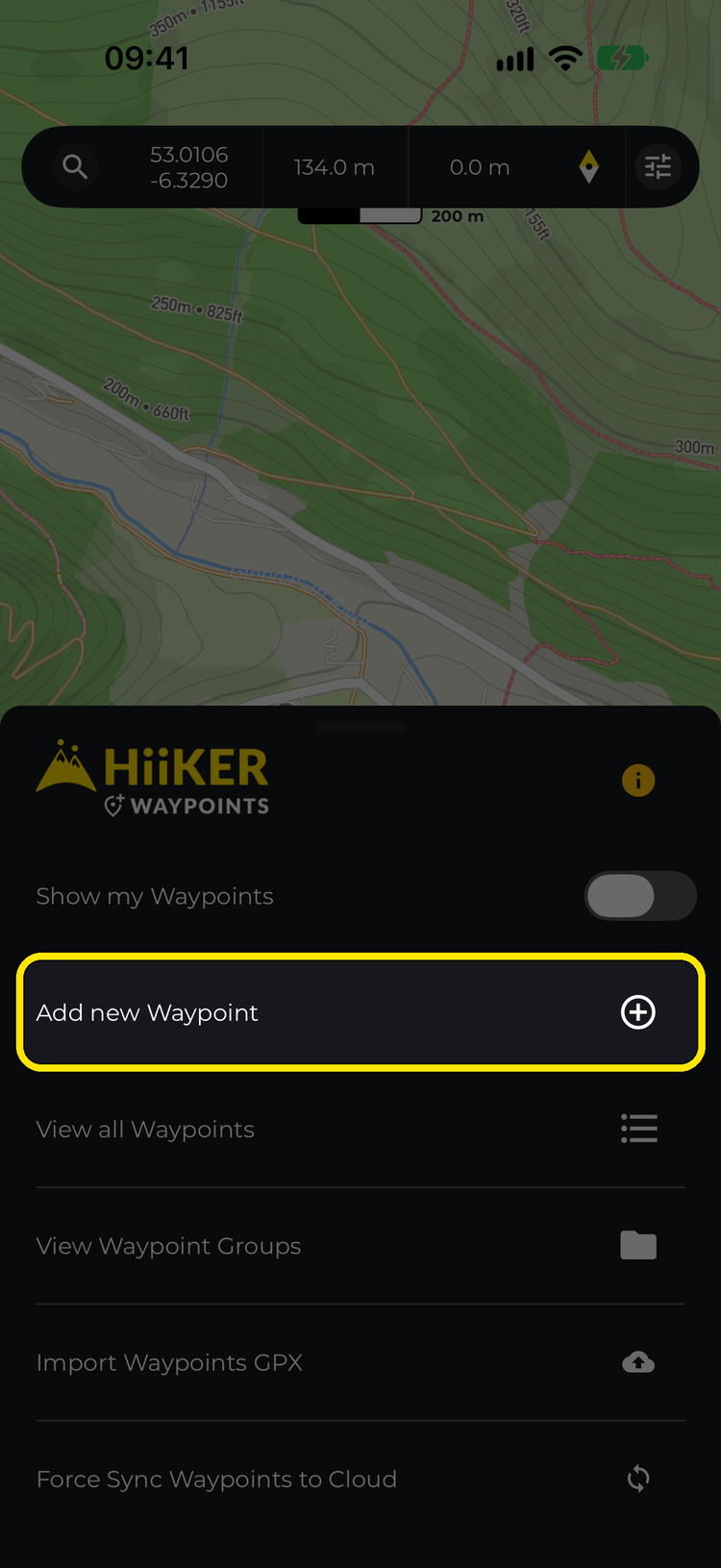
From the Waypoints menu: on any map, tap Options > Waypoints > Add new Waypoint (on Android: Add new waypoint). This drops a waypoint at the crosshair in the centre of the map.
By long-pressing the map: press and hold anywhere on the map to drop a temporary marker at that exact point, then tap Save as Waypoint.
From a point of interest: tap a POI on the map, such as a campsite or a café, and tap Save. See HiiKER Points of interest (POIs).
Adding lots of waypoints? Set a quick action to Create new Waypoint and add one with a single tap. See How to assign a Quick action on HiiKER.
The long-press marker
Long-pressing the map drops a temporary marker you don’t have to save. It’s the quickest way to ask “what’s here?”: the marker sheet shows how far the spot is from you, the climb to it and its elevation, plus:
- Save as Waypoint — keep it permanently.
- Plan route to pin — opens the Hike Planner with the pin as your destination. Long tap the map to set where you’re starting from.
- Street View — look around the spot in Google Street View (PRO+).
- Set compass bearing — points the mini compass at the pin. See How do I use the HiiKER mini compass?
- Coordinate — the pin’s position in your chosen coordinate format. Tap the copy button next to it to copy it.
- Clear Marker — remove the marker. Nothing is saved.

What you can do with a saved waypoint
Tap a waypoint on the map to open its sheet. The buttons along the top are:
- Edit — change the name, description, icon type, photos, privacy and the group it belongs to.
- Plan to — opens the Hike Planner with the waypoint as your destination. Long tap the map to set your start point and the planner draws the route.
- Bearing — points the mini compass at the waypoint.
- More — Driving Directions (opens Google Maps or Apple Maps, handy for getting to a trailhead or car park), Share, Export GPX, Print Map of Area and Delete.


If Google has Street View imagery near the waypoint, a Street View tile appears next to the waypoint’s photos (PRO+).
Good to know: a waypoint can’t be dragged to a new position. To move one, delete it and add a new one in the right place.
Showing, listing and grouping
Under Options > Waypoints, turn on Show my Waypoints to show all your waypoints on the map. View all Waypoints (on Android: View waypoints list) lists them, with search by name and filtering by type. Tap Show on any of them to zoom the map there.
You can put waypoints into groups from their Edit screen, and browse the groups under View Waypoint Groups. To delete a group:
- On iPhone: long-press the group and choose Delete (without deleting waypoints) to keep its waypoints, or Delete (with deleting waypoints) to remove them too.
- On Android: tap the menu (⋮) on the groups screen, choose Delete Groups and pick the groups, then choose Delete group only or Delete group and waypoints.
Any waypoints you keep stay on your account, just without a group.
Importing waypoints
Got a set of waypoints from another hiker or a website? Go to Options > Waypoints > Import Waypoints GPX (on Android: Import GPX Waypoints), choose the file, and they’ll be added to your account.
Waypoints on the website
On any map at hiiker.app, click Options > Waypoints to add one or view your list. Waypoints sync both ways, so anything you add in the app appears on the website and vice versa, as long as you’re signed in to the same account. See Waypoints on the HiiKER website.
